Every Highlighter template authored in the Highlighter Extension requires rules about which URLs that template should deploy to. A pageset is the group of URLs that is targeted by a template. Pagesets are defined using deployment rules that take the form of URL Patterns, XPath Patterns, or a list of URLs. Users can also define a pageset exclusion pattern to ensure the template doesn't deploy to specific URLs or groups of URLs.
TABLE OF CONTENTS
How to Define a Pageset
There are three methods for defining a pageset. They are mutually exclusive - you cannot use more than one method at a time - however, you can define pageset exclusions to prevent overdeployment to URLs you do not intend to target.
Option 1: Manual List of URLs
Manually paste in the exact URLs you would like to apply this markup to. The URLs you add must be exactly the same as the production URL you want to target. For example, if a user manually entered https://www.schemaapp.com/events but the live URL was https://www.schemaapp.com/events/ with a trailing slash, then the markup would not deploy.
Note: The URL you add must also match the canonical URL on the page you are targeting. If there is a mismatch between the production URL and the canonical URL listed in its HTML, then the markup will not deploy. For more information review the article "Highlight.js Deployment: Condition To Confirm if Page URL Matches the Canonical"
How to Add Manual URLs to a Pageset
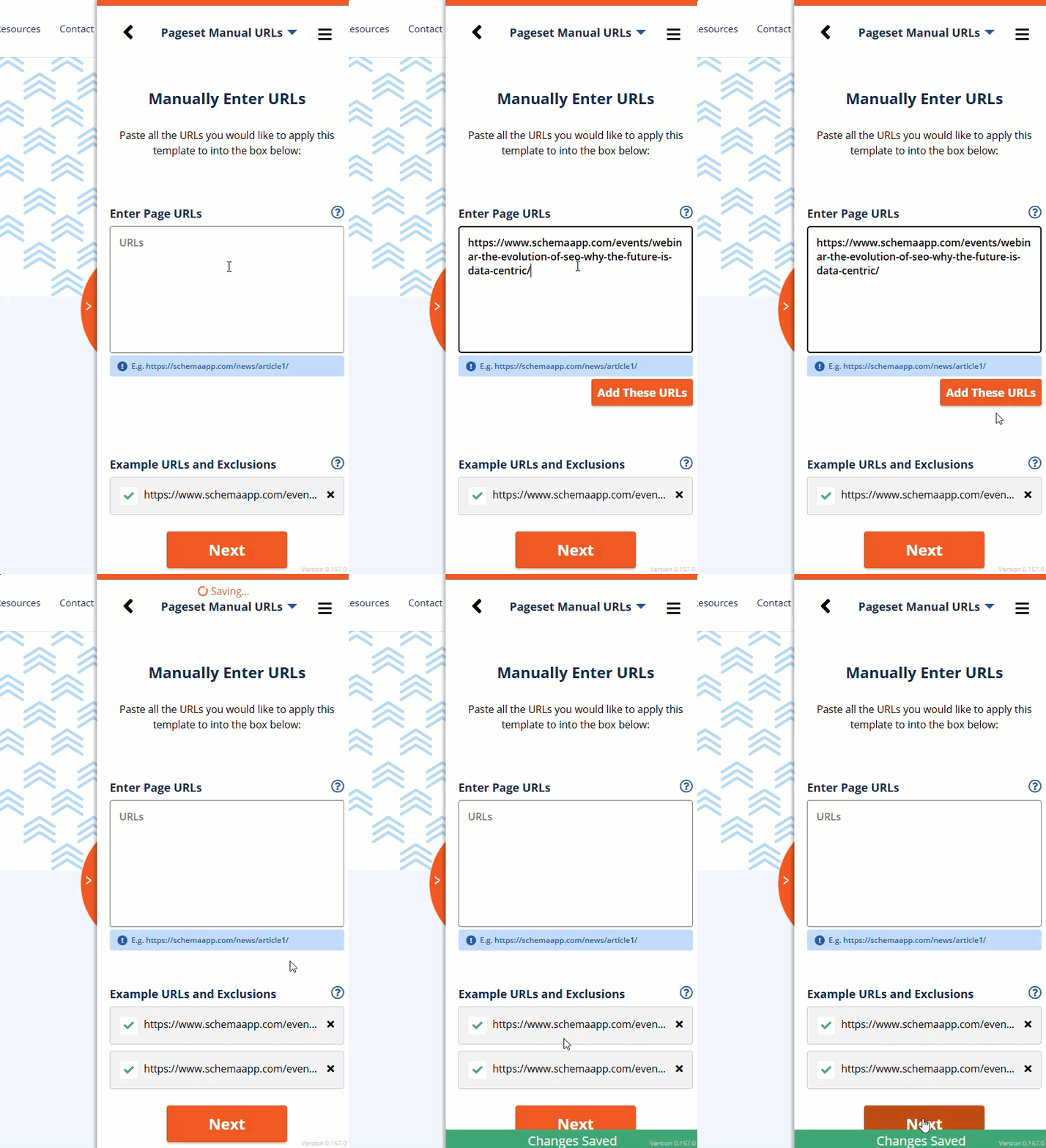
- Select "Manually Enter URLs"
- Paste the URL(s) you want to target into the text field
- Select "Add these URLs"
- Confirm the URLs are added to the list of Example URLs
Option 2: URL Pattern
Enter a URL pattern you would like to apply markup to. If the page URL matches the URL pattern, then that page will receive markup from this template. URL patterns are made up of defined subdirectories/text and wildcards. You do not need to include the domain. Continue reading for more information about wildcards.
Note: The URL of the page you are targeting must match its canonical URL. If there is a mismatch between the production URL and the canonical URL listed in its HTML, then the markup will not deploy. For more information review the article "Highlight.js Deployment: Condition To Confirm if Page URL Matches the Canonical"
There are three possible components for a URL pattern
- Defined Subdirectories & Text
Define requried subdirectory paths that must be included in the URL pattern
Example: /support/solutions/articles/
This pageset would deploy to only one URL. - Single Star Wildcards
Single star wildcards represent the text within one subdirectory
Example: /support/solutions/articles/*/
This pageset would deploy to any URL nested one subdirectory below /articles/ - Double Star Wildcards
Double star wildcards represent any URL within the subdirectory path listed
Example: /support/solutions/articles/**
This pageset would deploy to any URL within any subdirectory within the /articles/ subdirectory.
How to Add URL Patterns to a Pageset
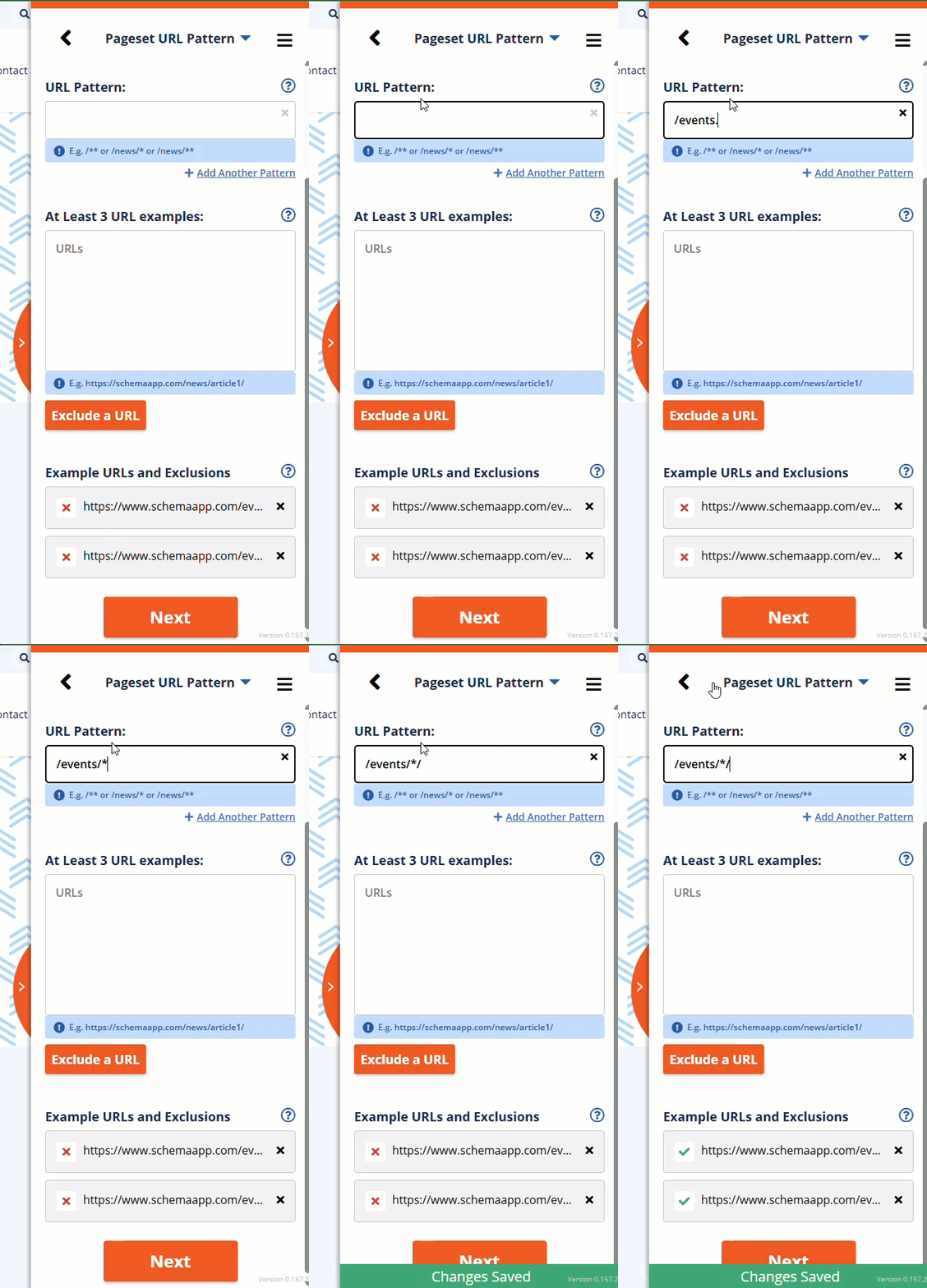
- Select "Create a URL Pattern"
- Enter your URL pattern
- If you have more than one pattern, select "Add Another Pattern" and repeat step 2
- Paste at least three example URLs into the sample field and select "Add These URLs"
- Review the list of Example URLs and Exclusions to confirm that the URL patterns you added will target the example URLs you added in Step 4.
- Review whether your URL pattern matches the example URLs provided. A green checkmark indicates a successful match, a red X indicates a non-match, and an italicized E indicates a URL is excluded.
Option 3: XPath Match Requirement
Enter an XPath pattern that has a match on all pages you want to apply markup to. If a page has content that matches that XPath, then that page will receive markup from this template. XPaths are an excellent way to create pagsets when a site has a relatively flat site structure without highly differentiated URL subdirectories.
Note: If you are using an XPath pattern, be certain that it does not match on pages that you do not want to target with your template. This can sometimes be a process of trial and error
How to Add XPath Match Requirements to a Pageset
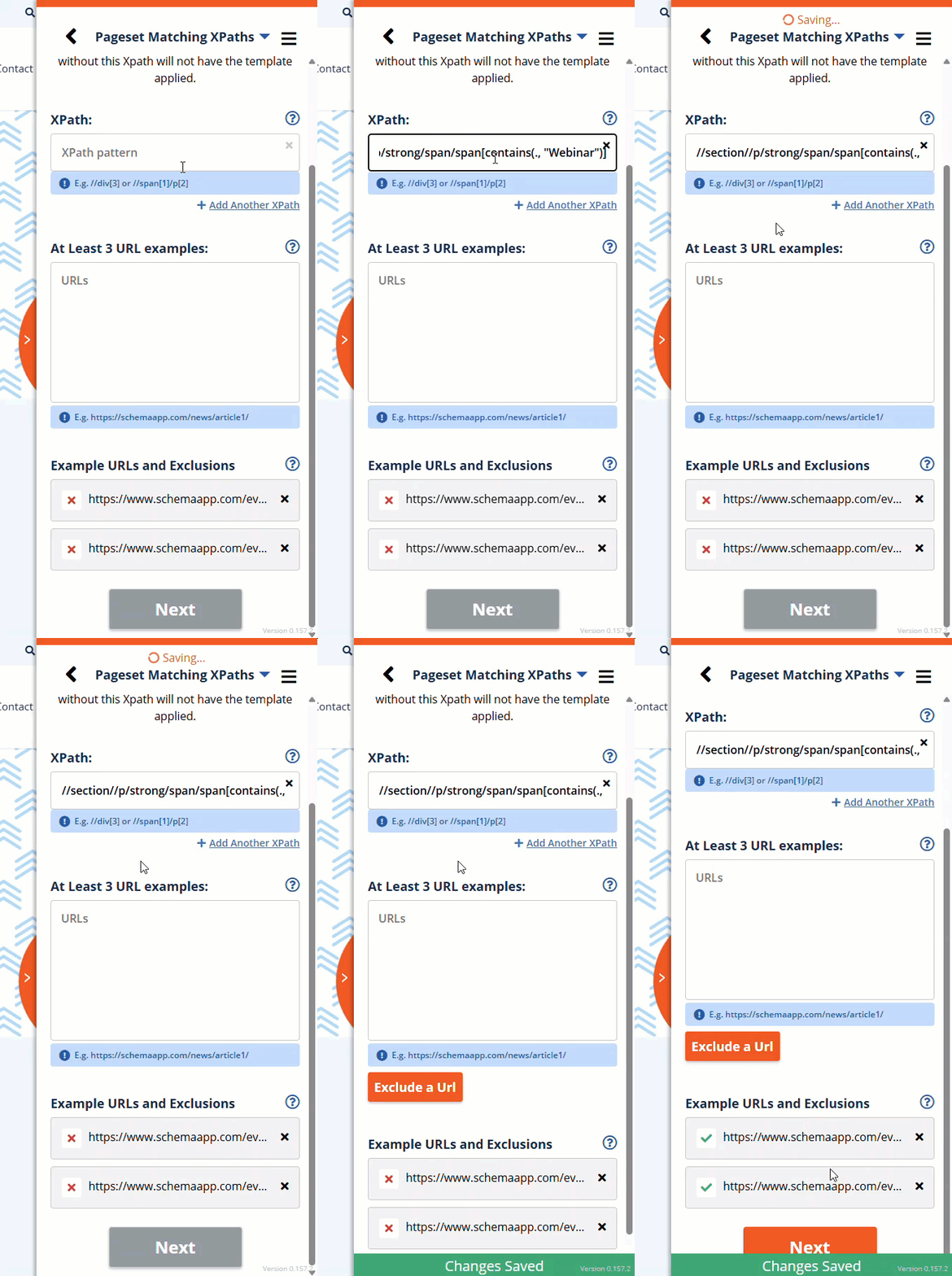
- Select "Choose Matching XPaths"
- Enter your XPath
- If you have more than one pattern, select "Add Another XPath" and repeat step 2
- Paste at least three example URLs into the sample field and select "Add These URLs"
- Review the list of Example URLs and Exclusions to confirm that the XPath you added will target the example URLs you added in Step 4.
- Review whether your XPath matches the example URLs provided. A green checkmark indicates a successful match, a red X indicates a non-match, and an italicized E indicates a URL is excluded.
How to Define a Pageset Exclusion
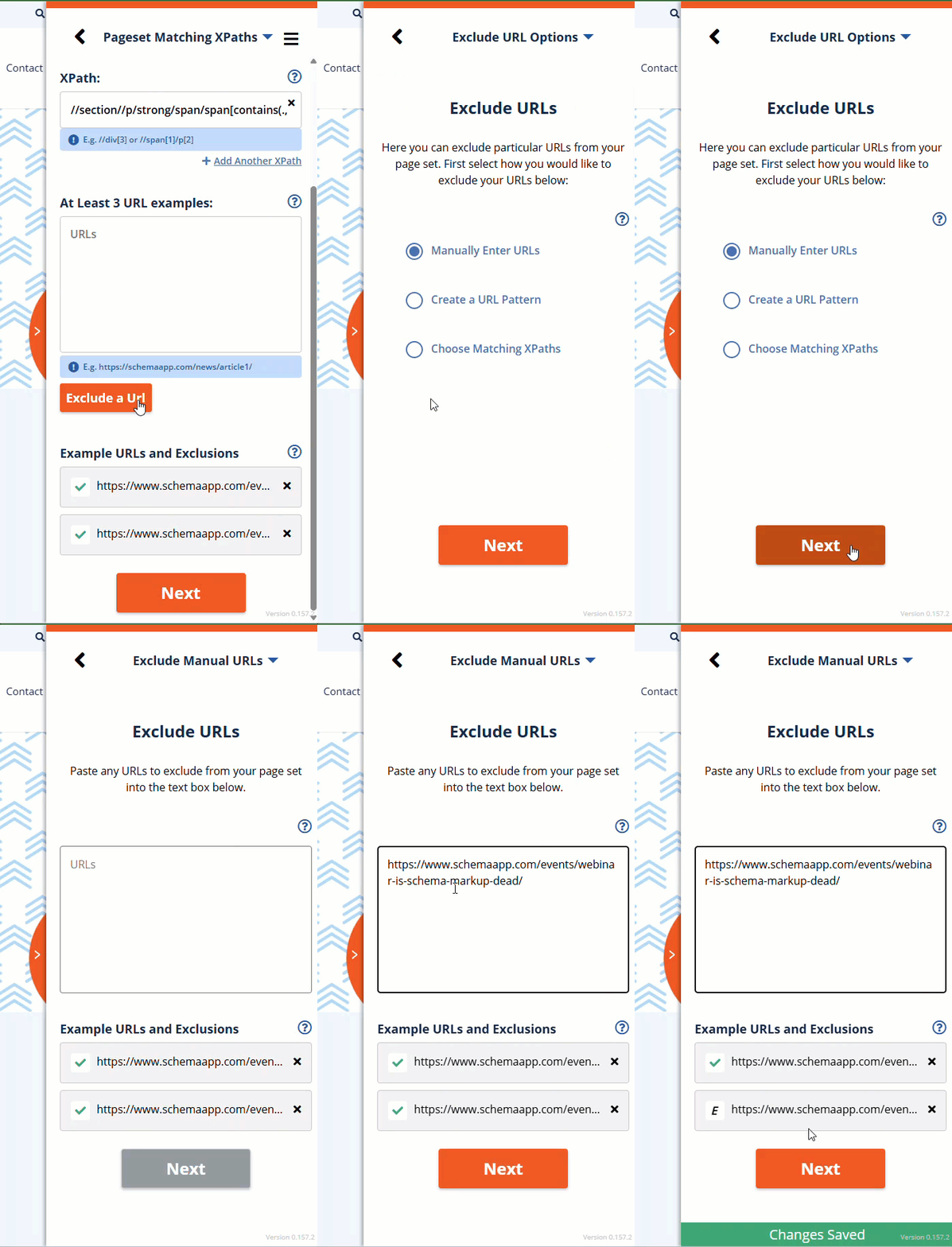
Pageset exclusions are rules to define URLs that the template should not deploy to. Users can input a list of URLs, a URL pattern, or an XPath match to define an exclusion. Exclusions are only available when deploying via a URL Pattern or an XPath.
There are three methods for excluding URLs: a manual list of URLs, a URL pattern, or an XPath. Currently, only one exclusion method can be used at a time.
Was this article helpful?
That’s Great!
Thank you for your feedback
Sorry! We couldn't be helpful
Thank you for your feedback
Feedback sent
We appreciate your effort and will try to fix the article