This support document describes the various settings, features, and sub-pageswithin the Highlighter Extension.
TABLE OF CONTENTS
Navigating Pages and their Components
This section describes various pages within the Schema App Highlighte Extension.
Template Creation Landing Page
This is the page users are brought to when first signing into the extension and chosing a project.
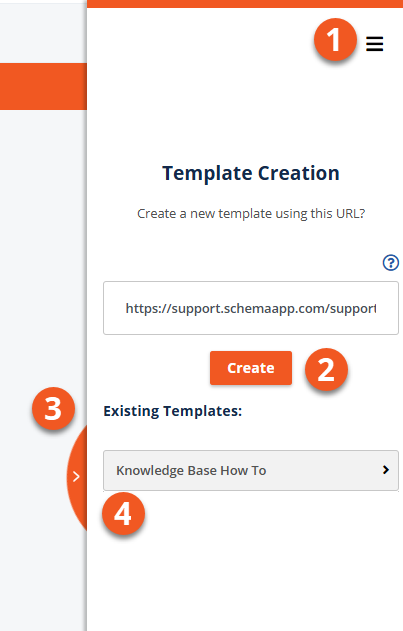
| # | Component | Description |
| 1 | Highlighter Extension Settings Menu | Open the Settings menu to access support and other sections of the Highlighter extension. |
| 2 | Create Template Button | Author a new template targeting the URL the Highlighter Extension is open on |
| 3 | Collapse & Expand Button | Click this button to hide the extension pane and reopen it. |
| 4 | List of Existing Templates | Click on the drop-down to see more information about a template, target the current page with that template, or edit that template. This list will only reflect templates that target pages on the domain the Extension is currently open on. |
Highlighter Extension Settings Menu
Opening the hamburger menu brings up several links to external URLs and pages within the extension.
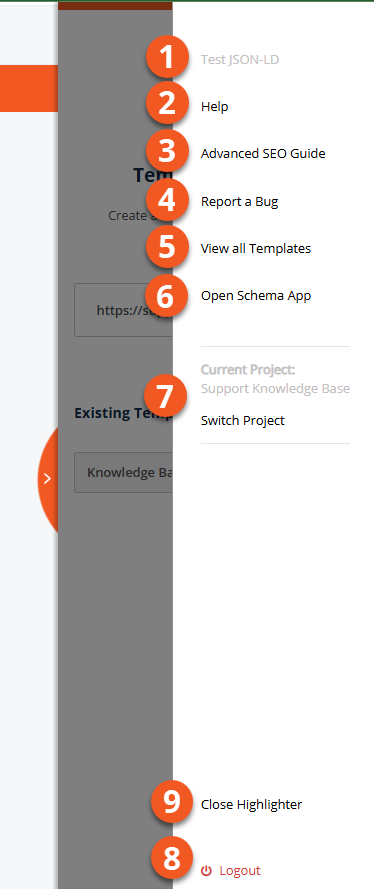
| # | Component | Description |
| 1 | Test JSON-LD | Clicking this link will allow you to the View JSON-LD page. From here you can review how a specific template will generate markup on your current URL. This link is only clickable when a template is open. |
| 2 | External Link: Help | Clicking this link will bring you to support documentation about the Highlighter Extension on the Schema App Knowledge Base |
| 3 | External Link: Advanced SEO Guide | Clicking this link will bring you to Google's documentation about Rich Results. |
| 4 | External Link: Report a Bug | Clicking this link will bring you to a reporting form to log a bug with Schema App's development team. |
| 5 | View All Templates | Clicking this will bring you to the View All Template page wthin the Highlighter Extension. This provides information about all templates associated with a Schema App project the extension is assigned to. |
| 6 | External Link: Schema App | Clicking this link will bring you to the App website. |
| 7 | Project Switcher | Clicking this will open the Project Switcher selection. Use it to move between different projects. |
| 8 | Log out | Sign out of the application. |
| 9 | Close Highlighter | Stop the current Highlighter Extension session in your Chrome browser. |
View All Templates Page
This page provides a summary of all templates in a project. It is a quick way to navigate between templates you are editing or reviewing.
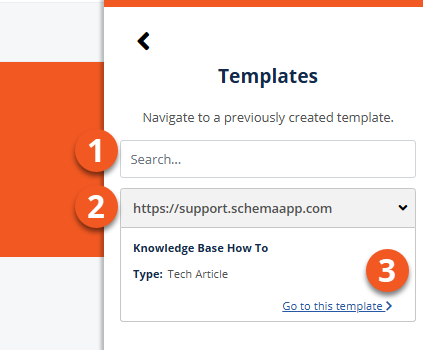
| # | Component | Description |
| 1 | Search Bar | Search for a Template by Type, or by name. |
| 2 | Template Details | Click the drop-down to see more information about a template |
| 3 | Open Template | Click to open the template. The template will default to opening on the URL the template was first created on. |
Was this article helpful?
That’s Great!
Thank you for your feedback
Sorry! We couldn't be helpful
Thank you for your feedback
Feedback sent
We appreciate your effort and will try to fix the article