This document describes how to highlight a page using the Highlighter Extension. The first section describes the broad process of creating a Highlight in the extension. The second section describes the various options for highlighting on-page components and how to create those highlights. The third section describes the overarching process or authoring flow when using the Highlighter Extension to author markup.
TABLE OF CONTENTS
- How To: Create a Highlight in the Highlighter Extension
- Highlighting Options in the Highlighter Extension
- Authoring Flow in the Highlighter Extension
How To: Create a Highlight in the Highlighter Extension
A Highlight connects a piece of content to a specific Schema.org property, or property path. There are several different types of Highlights you can create. Review
- Step 1: Select the property you want to map a component to.
- Step 2: Select the Type of Highlight you want to create.
Note: A property path is a combination of properties and Types. For example: hasPart~FAQPage~mainEntity~Question~name is a property path that targets the question component of an FAQ.
Step 1: Select the property you want to map a component to.
This will open a dropdown menu where you can select the type of Highlight you want to create
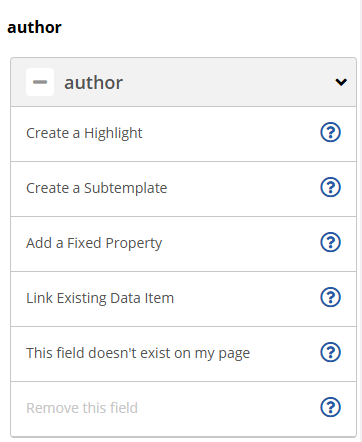
Step 2: Select the Type of Highlight you want to create.
Choose the Highlight type you want to use. See the following section for a breakdown of the Highlighting options and how to create them in the Highlighter Extension
Highlighting Options in the Highlighter Extension
Click to Highlight
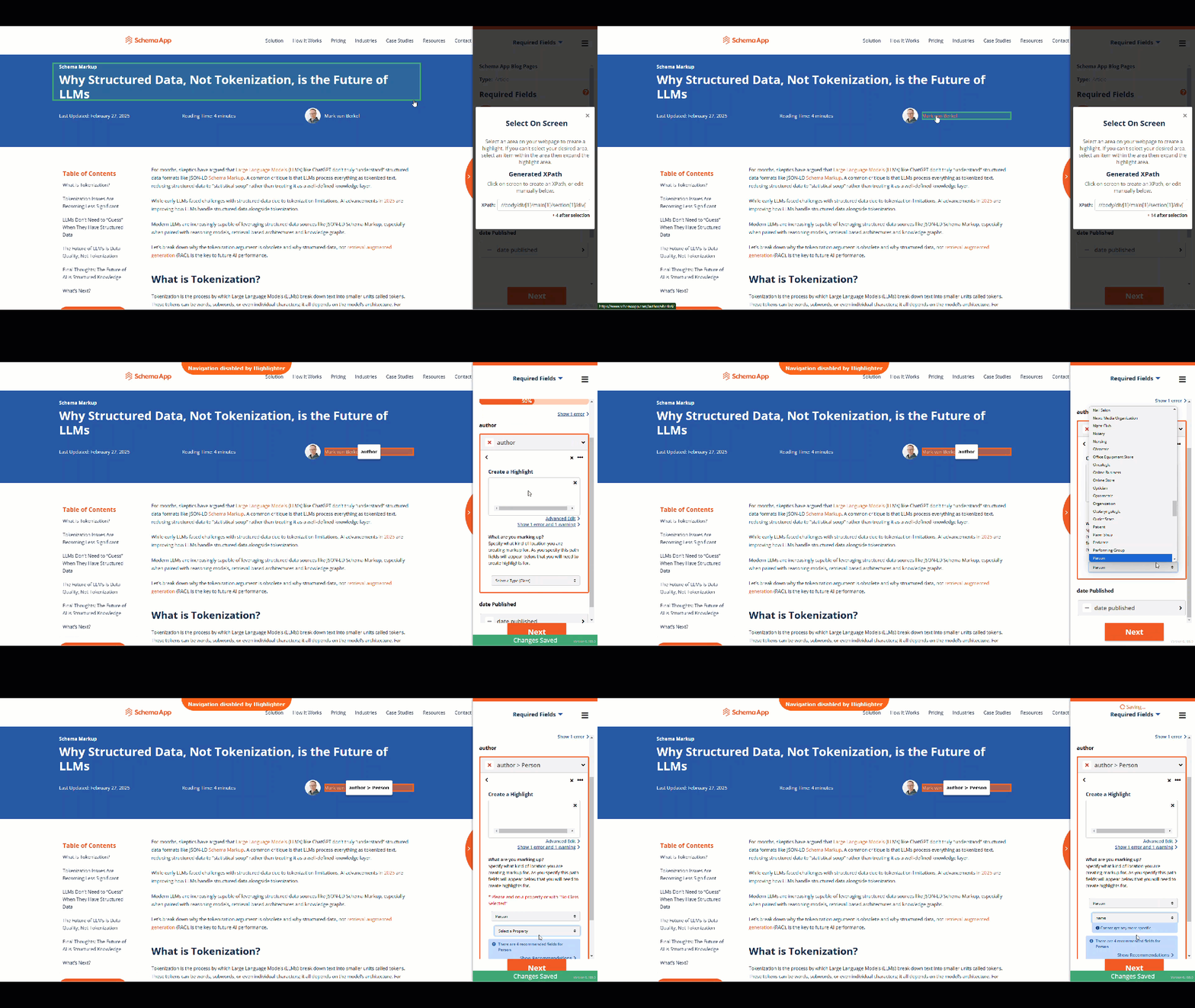
Click to highlight is the default recommended method of targeting an on-page component,
How To: Use Click To Highlight
- Select a Highlight
- A pop-up window will appear in the highlighter
- Navigate your mouse to the component you want to highlight and select it
- Enter the property path that is associated with that component
Use Manual XPath Override
This section describes two ways to manually override your XPath selections. Both of the options for Manual XPath Override will allow users to select an XPath that must be used instead of the automatically generated XPaths.
How To: Use Pop-up XPath Override
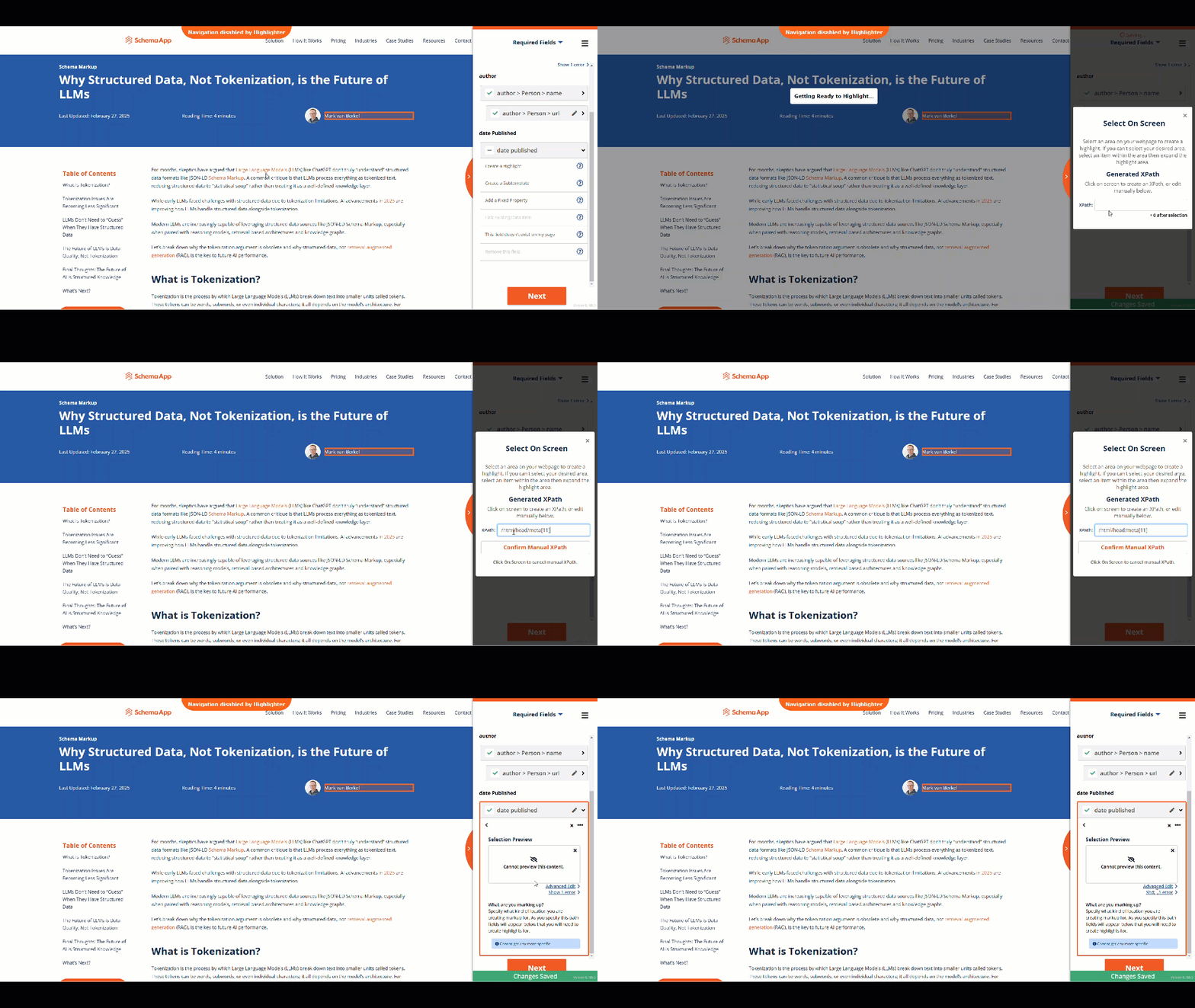
Use the Popup override where you know that a manual XPath is required to target specific content.
- Click to Highlight
- When the pop-up window appears, enter your XPath override to the field
- Confirm your XPath override.
How To: Use Advanced Edit XPath Override
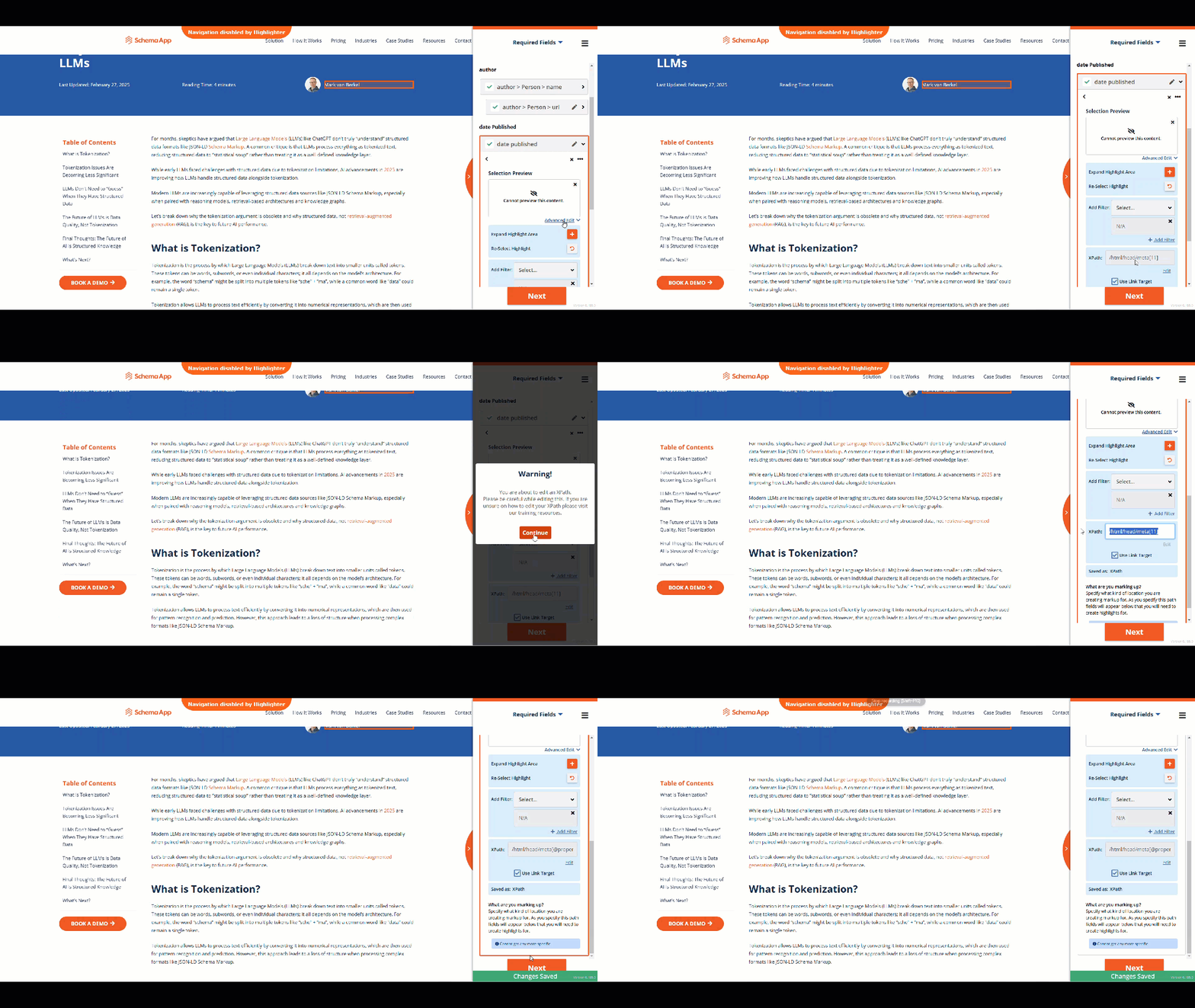
Use the Advanced Edit override to modify existing highlights.
- Follow the steps in How To: Use Click to Highlight
- Once the highlight is chosen, navigate to "Advanced Edit" and select
- Select "Edit" underneath the XPath field. You will be prompted to continue
- Add your XPath override to the XPath field
- Click away and your changes will be saved
Note: Highlights that target links (i.e <a> elements) have an additional capability to "Use Link Target". Selecting this tickbox will force the tool to map the URL, rather than the link text. This feature is only available for true links (i.e. <a> elements) and not images or videos.
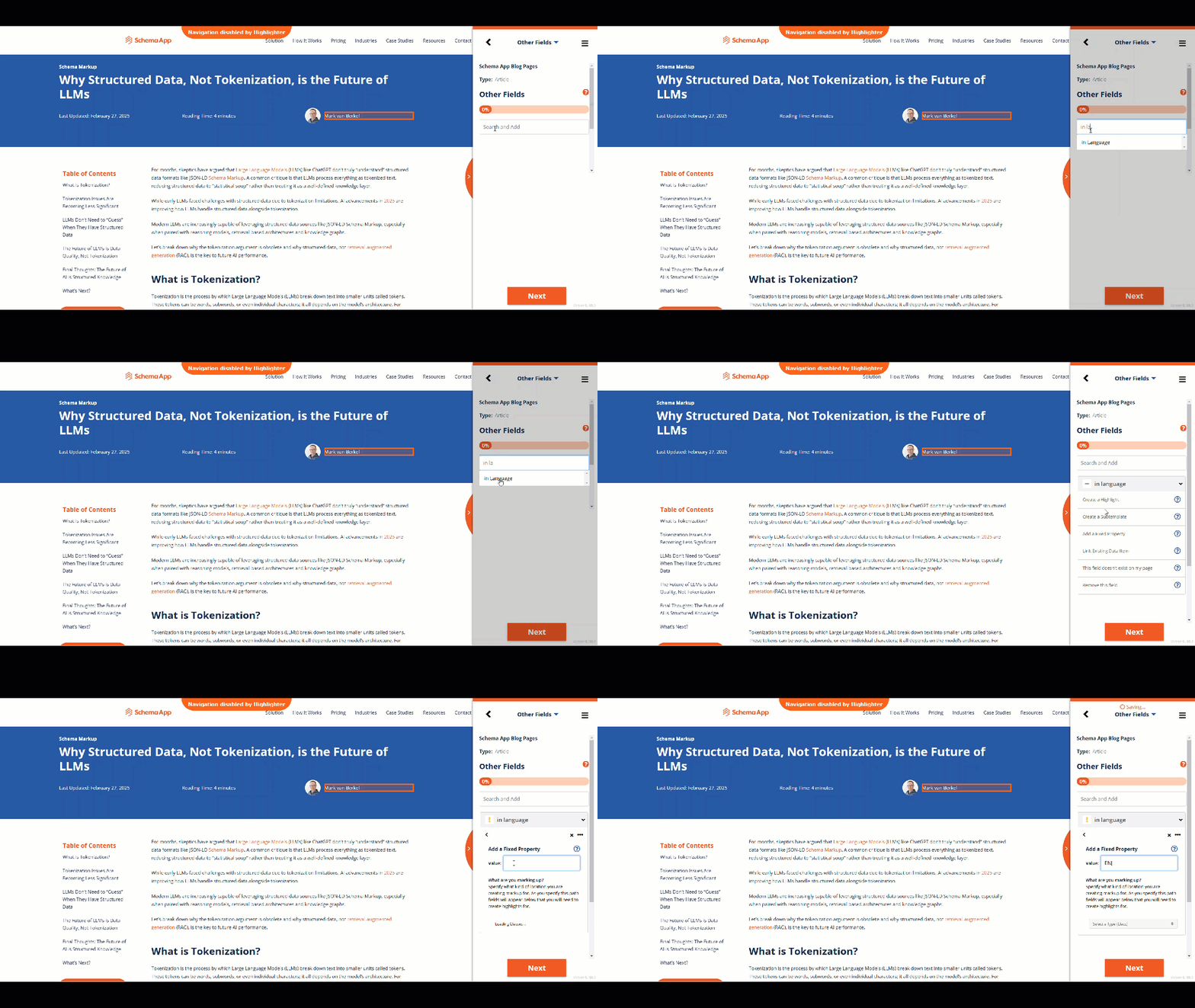
Fixed Property
A fixed property is a value that will appear on every page a template is deployed to. It is possible to define conditions that must be true before a fixed property is applied, If you are interested in this, please discuss with your customer success manager.
How To: Add a Fixed Property Highlight
- Select "Fixed Highlight"
- Select any additional Types or properties
- Enter your value into the text field
Link Existing Data Item
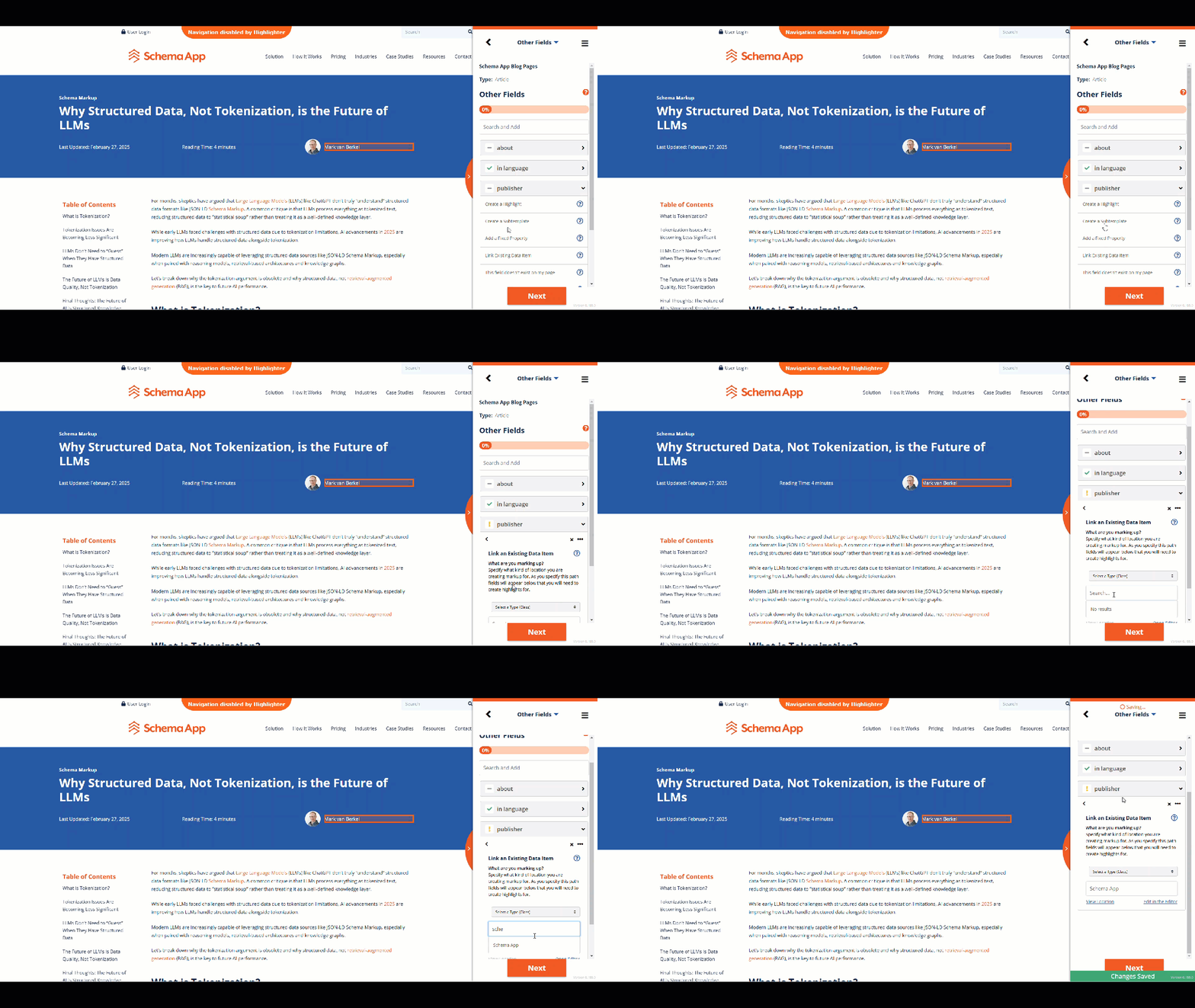
Users can link existing data items created manually using the Schema App Editor. These data items will appear on every page a template is deployed to. It is possible to set a condition that a data item only be linked when a specific criteria is met. Currently, this is an action your CSM must perform.
How To: Link an Existing Data Item
- Select "Link Existing Data Item"
- Select any additional Types or properties
- Search for your data item by name and select it
Note: If you have multiple data items with the same names, use the View Location or "Edit in Editor" selections to confirm you've selected the correct data item.
Subtemplate Highlight
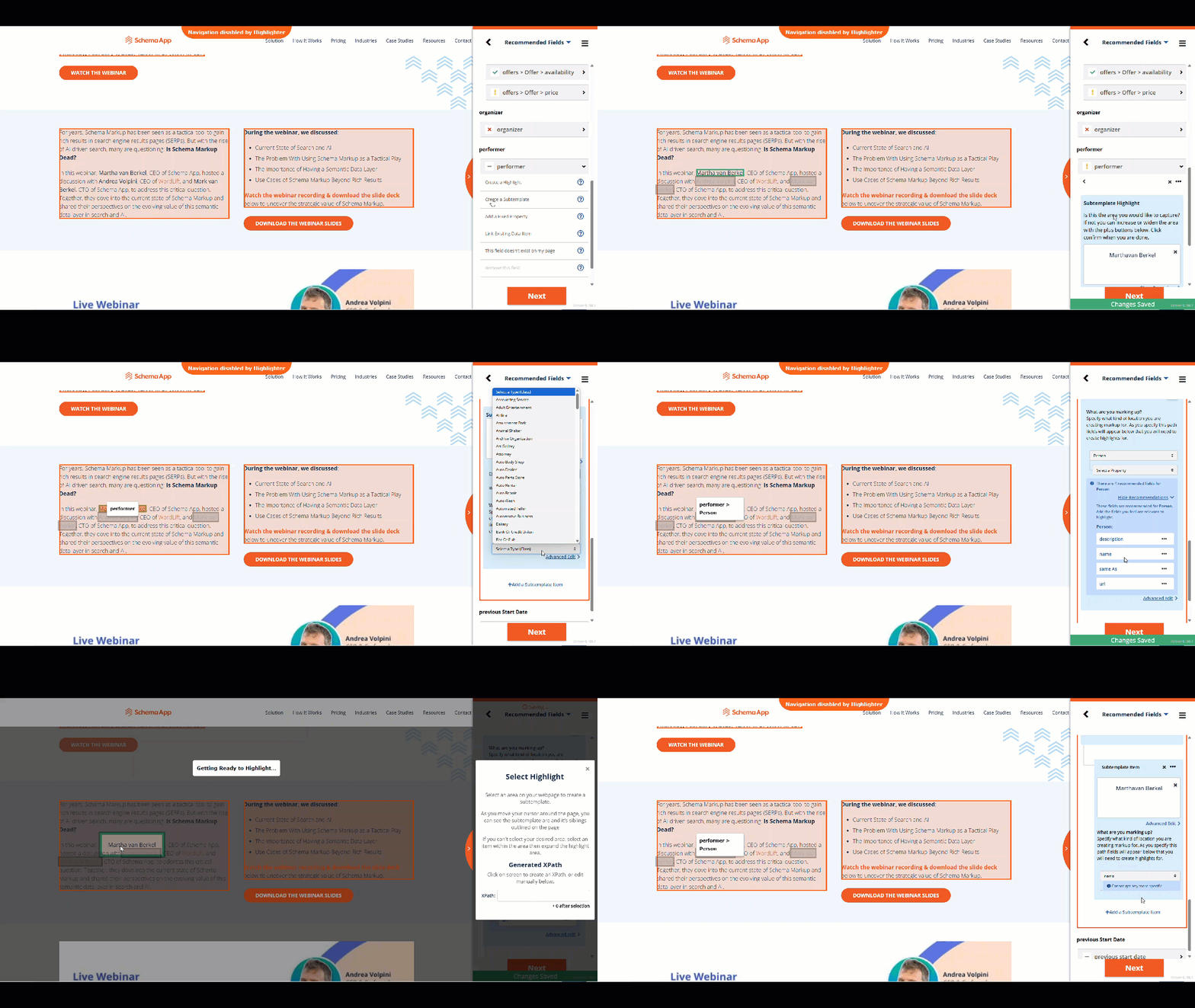
A subtemplate highlight is used to target repeating components on a page. Common examples of components targeted using subtemplate highlights include Products within an OfferCatalog, questions and Answers within an FAQPage, or a Physician's multiple hospitalAffilitations.
Note: You can use XPath overrides on your Subtemplate highlighter. If you override your Base Component XPath then all your subcomponents must have manual XPaths overrides.
How To: Add a Subtemplate Highlight
- Select "Create a Subtemplate"
- Select your Base Component on page and confirm your selection
The Base Component is the repeating Thing you are describing. The highlight must target the repeating HTML component. For example, within an FAQPage, the Question is the Thing or type that repeats. In the example below, the performer~Person is the repeating component. The first instance of the repeating component will be highlighted in a selector box and following repeating components with be selected with greyed out boxes. - Select "Add a Subtemplate item" to add your subcomponents or select required/recommended properties from the suggested list.
A subtemplate item is a piece of content that exist within the repeating base component. For example, within a Question, we want to target some content for the name and some content for the acceptedAnswer~Answer~text. In the example below, the name of the Person performing is the subtemplate item being targeted. Subtemplate items can be Highlights, Linked Data Items, or Fixed Properties. Follow the instructions in this support document for each of the specific highlight types. - Repeat Step 3 for every subtemplate item until all relevant content is targeted.
Authoring Flow in the Highlighter Extension
This section describes the sequential steps of authoring using the Schema App Highlighter Extension. During the process of reviewing a template, you will jump between these pages using the dropdown menu.
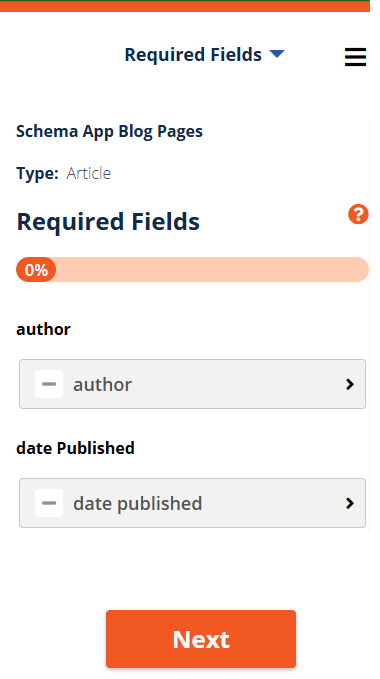
Required Properties
If the primary Type you choose is eligible for a Google Rich Result, the Highlighter Extension will list the required properties for that particular Type. Review this list to see which Types are eligible for a Rich Result.
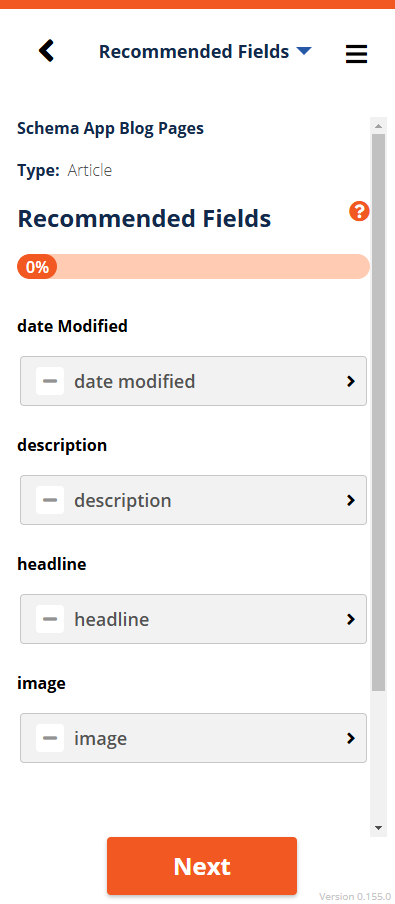
Recommended Properties
The Highlighter Extension will also list the recommended properties. Recommended properties may impact the appearance of the Rich Result but aren't necessary to achieve that rich result.
Additional Properties
If you have additional properties you want to add you can search for the property from a drop-down list. If you are authoring for a Schema.org Type that does not have an associated Google Rich Result, you will default to the "Additional Properties" page as your first page.
JSON-LD Preview
The JSON-LD Preview is a preview of how your markup will appear when deploying to a URL. There are some slight differences between the deployed markup and the preview (e.g linked data items won't just be represented by URIs). Use this section to test your markup in the Schema Markup Validator and the Rich Results Test to confirm you are accurately describing the page, and eligible for your desired rich results.
Page Set
A Page Set defines how a template should be applied to pages on a website. Schema App Highlighter Templates can be deployed using a URL pattern, an XPath condition, or a defined list of URLs. Deciding which URLs should be targeted by a template and how is a critical step in the template authoring process.
Was this article helpful?
That’s Great!
Thank you for your feedback
Sorry! We couldn't be helpful
Thank you for your feedback
Feedback sent
We appreciate your effort and will try to fix the article