This support document describes how to log into the Schema App Highlighter Extension and select your project. This is an important first step once you start the Highlighter Extension.
TABLE OF CONTENTS
How To Log In
Use your existing Schema App username and password to log in to the Highlighter Extension. If you are an Account Owner with an Enterprise or Agency plan, you can add additional users by following the steps in this document. Contact your Account Owner or CSM if you need support being added as a user.
Note: Typically you want to log into the Extension when you're already on the URL you want to mark up or review.
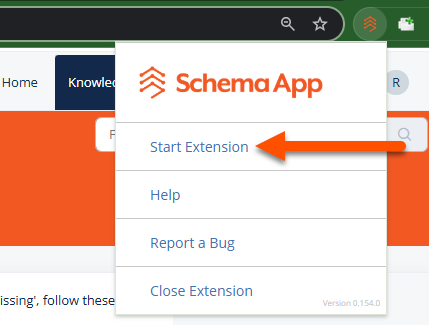
Step 1: Start the Highlighter Chrome Extension
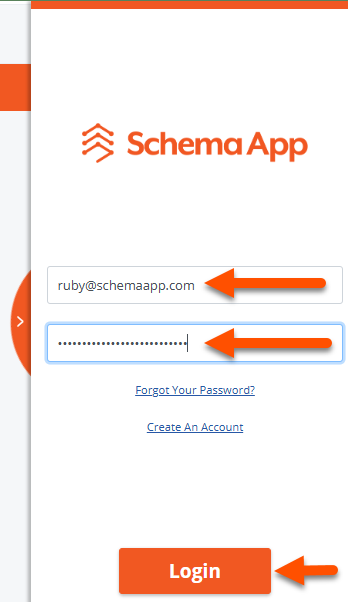
Step 2: Enter your user name and password, and Login.
How To Select a Project
There are several ways you can select a project to work in. We recommend that every domain is represented by its own Schema App project. You can confirm which project you are currently in by opening the HIghlighter Extension Settings.
- Step 1. Open the Highlighter Extension Settings
- Step 2. Select "Switch Project" and confirm
- Step 3: Choose your Project from the Project Switcher Module
Note: If you only have one project, you will not be prompted to select a project.
Option 1: Select a Project After Logging In
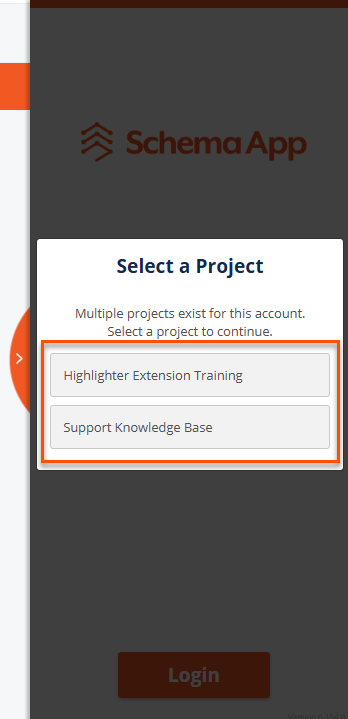
Once you log in, you will be prompted to select a project. from a list. Projects are listed in alphbetical order.
Option 2: Select a Project Using the Highlighter Extension Settings
Complete the following steps to change your project during a session.
Step 1. Open the Highlighter Extension Settings
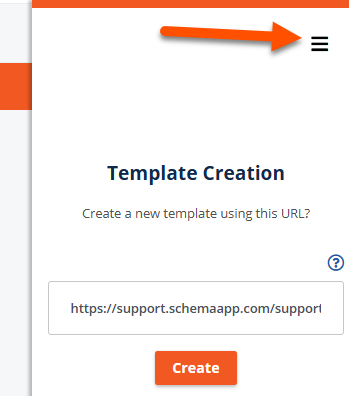
Select the hamburger menu in the top right corner to open up the Schema App settings.
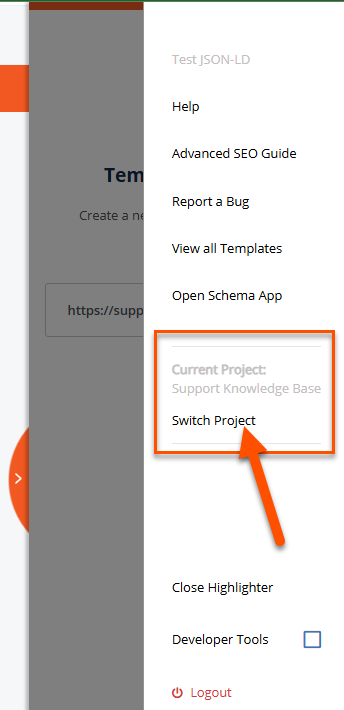
Step 2. Select "Switch Project" and confirm
Your current project will be identified in light grey text. Select "Switch Project".
You'll be shown a confirmation screen that you want to switch projects.
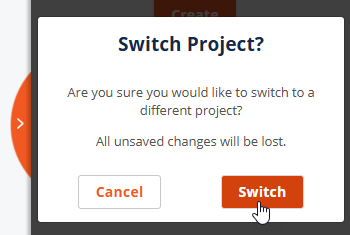
Note: Make sure you've saved your work before switching projects to avoid losing your progress.
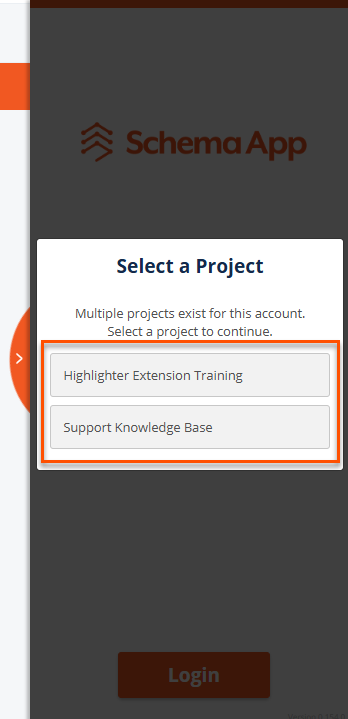
Step 3: Choose your Project from the Project Switcher Module
You will be prompted to select a project from a list. Projects are listed in alphbetical order.
Was this article helpful?
That’s Great!
Thank you for your feedback
Sorry! We couldn't be helpful
Thank you for your feedback
Feedback sent
We appreciate your effort and will try to fix the article