Not every highlight will be applicable to every URL targeted by a template. Defining a field condition for ensures schema markup is only generated when that specific condition is met, improving the accuracy of structured data and preventing incorrect tagging. This support article outlines how to apply conditional field functionality (conditional highlights) in the Highlighter (HX) extension. After reading this article, users will know how to create, configure, and validate conditional highlights within the Highlighter Extension.
Note: Conditional highlights rely on XPath tests. If the XPath condition does not evaluate as true, the field will not deploy. A fork icon in HX indicates a field is conditionally applied.
TABLE OF CONTENTS
- Why Should Users Apply Highlighter Fields Conditionally?
- How To: Apply Conditional Fields in the Highlighter (HX)
- How To: Confirm and Validate your Conditions are Working
Why Should Users Apply Highlighter Fields Conditionally?
Templates target multiple pages and those pages sometimes have variable content, meaning not every field is relevant on every page. Conditional field functionality in the Highlighter (HX) allows users to control when a field is applied by defining rules based on page content. This is especially important for dynamic content such as product offers, reviews, or pricing variations where incorrect tagging can lead to invalid or innacurate markup.
How To: Apply Conditional Fields in the Highlighter (HX)
This process walks through how to create a conditional highlight by adding an XPath condition to a field. This ensures the field is only applied when the defined condition evaluates as true.
Step 1: Create or Select a Highlight
Create a new highlight or select an existing field within your template. Choose one of the options in the menu. Review this support article for more information on the different types of highlights.
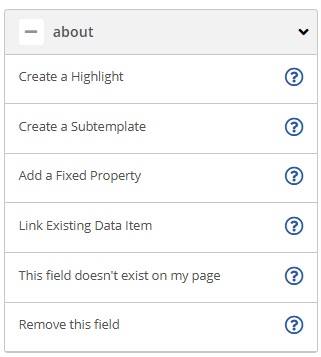
Step 2: Open Advanced Edit Settings
Navigate to the advanced edit section of the highlight. This is where conditional logic can be applied to the field.
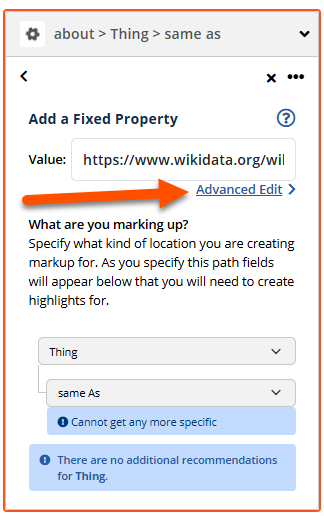
Step 3: Enable “Apply the Field Conditionally”
Select the option to apply the field conditionally. This allows you to define an XPath test that must evaluate as true for the field to deploy.
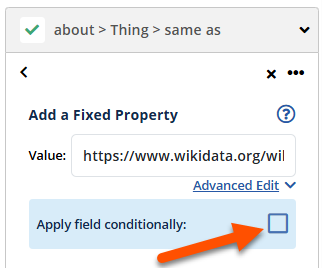
Step 4: Define the XPath Condition
Set the condition using one of the following approaches:
Option A: Highlight-Based Selection
- Select an element directly on the page to generate the XPath. This option uses the click to highlight functionality, but wraps the element in a blue box rather than an orange box.
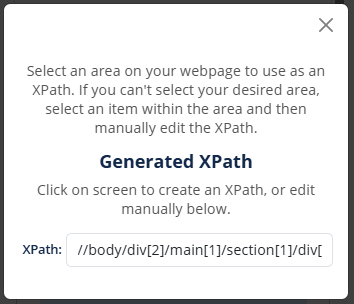
Option B: Manual XPath Entry
- Enter a custom XPath expression to define the condition logic. This option is recommended for non-visible page components, and complex conditions.
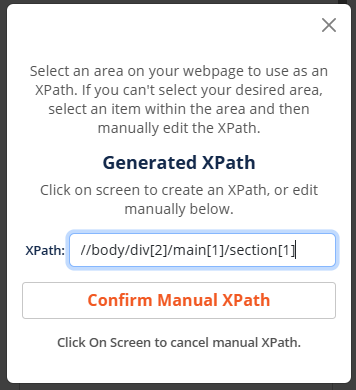
Note: The XPath should evaluate whether a specific element, value, or pattern exists (e.g. checking if a price contains a hyphen to indicate a price range, checking if a review component is on the page to indicate to reference a bestRating value, etc.
In this example. the "about~Thing~sameAs" highlight will only apply to URLs with the form present (highlighted in blue)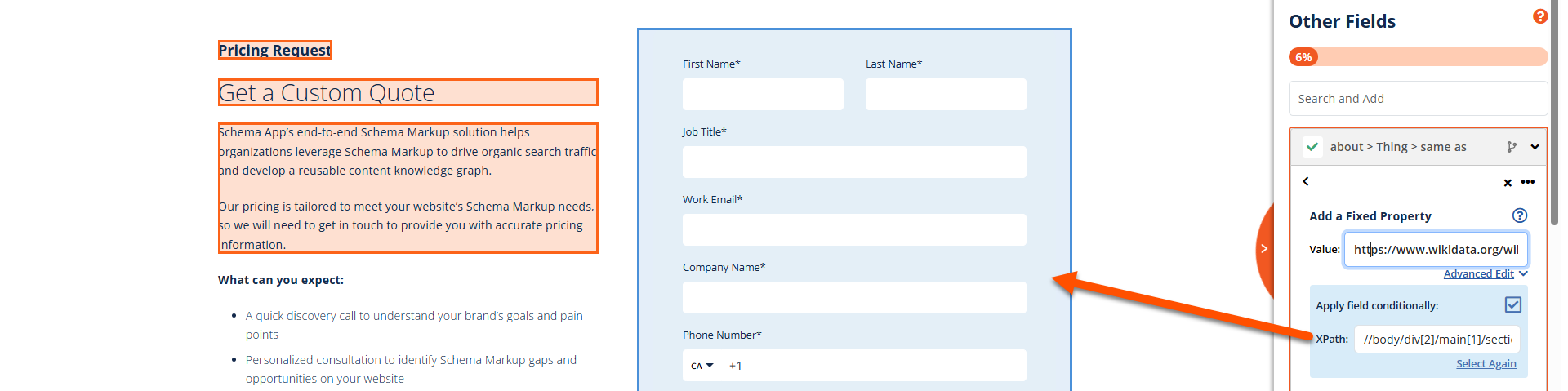
Step 5: Confirm Conditional Application via the Fork Icon
After saving, verify that the highlight shows the conditional indicator (fork icon) in the interface. This confirms the field will only deploy when an XPath condition is met.
Step 6: (Optional) Create Additional Tags for Different Variant Scenarios
Sometimes your different conditions will simply be a scenario where a highlight is relevant is relevant in one scenario and not in other. However, sometimes conditions will require multiple highlights to capture the various different scenarios. When this happens, multiple tags or highlights are often required.
Example:
- Condition A: Price contains a hyphen → apply AggregateOffer
Apply multiple tags for: lowPrice, highPrice and AggregateOffer~priceCurrency - Condition B: Price does not contain a hyphen → apply standard Offer (single price)
Apply multiple tags for: price and Offer~priceCurrency
This ensures accurate schema mapping for different content structures.
How To: Confirm and Validate your Conditions are Working
Testing your conditions is a critical component of applying a conditional tag. This is best completed before publishing to avoid deploying tags to URLs where they are not relevant or accurate.
Step 1: Review the JSON-LD on a URL where the evaluation is "True"
Choose a URL where the conditon is "true" (i.e. where the XPath has a match) and navigate to the JSON-LD preview. Review the code or use the Schema Markup Validator to confirm the highlight is applied when the condition is "true".
Step 2: Review the JSON-LD on a URL where the evaluation is "False"
Choose a URL where the conditon is "false" (i.e. where the XPath does not have a match) and navigate to the JSON-LD preview. Review the code or use the Schema Markup Validator to confirm the highlight is not applied when the condition is "false".
Step 3: (Optional) Test Across Multiple Pages
Consider using the Review step to assess whehter the condtion holds true across different URLs. This is particularly important if page structure varies significantly across the pageset of interest, or if you needed to apply a variety of conditional tags for different scenarios.
Was this article helpful?
That’s Great!
Thank you for your feedback
Sorry! We couldn't be helpful
Thank you for your feedback
Feedback sent
We appreciate your effort and will try to fix the article