Entity Linking is a Schema App feature that automatically identifies entities in your text content and connects them to unique data items or nodes in your knowledge graph. All Highlighter users have access to External Entity Linking (EEL) and Entity Hub subscribers have access to Internal Entity Linking (IEL). For in-depth information about Entity Linking, review our Explainer articles (External Entity Linking Explainer).
After reading this article, you will be empowered to apply entity linking using the Schema App Highlighter.
Pre-Requisites
- Schema App Highlighter Extension installed
- An existing or net new template available in your contract
- Written content with references to entities of interest
- For Internal Entity Linking: An Entity Hub Subscription
TABLE OF CONTENTS
- Understanding the Entity Linking Process
- How To: Apply Entity Linking Using the Highlighter
- How To: Audit What Entity Linking Returns After Publishing
- Conclusion
Understanding the Entity Linking Process
Previously, only the Customer Success team could add entity linking to templates. Now, all eligible users can add Entity Linking highlights using Schema App's Highlighter Extension. This support article describes the process for adding Entity Linking highlights and validating the results.
Understanding Entity Linking and Linked Entity Recognition
Entity linking is the process of connecting text in your content to a specific entity in a knowledge graph. For example, the text "Apple" could refer to a company, a fruit, or a record label. Entity linking attempts to identify the correct entity and associate the content with a unique identifier. This happens using a process called Named Entity Recognition (NER).
What is Named Entity Recognition (NER)?
Named Entity Recognition (NER) is the process of identifying potential entities within content. NER determines which words or phrases may represent people, organizations, locations, products, events, or other entities. After NER identifies candidate entities, entity linking attempts to match those entities to entries in a knowledge graph. Linked Entity Recognition for External entities uses NER to identify the concepts represented by the on-page text Schema App targets.
How Does Entity Linking Improve Structured Data?
Entity linking adds semantic context to your markup by establishing relationships between your content and known entities. This can help search engines and AI systems better understand the meaning of your content and how it relates to other entities across the web.
How To: Apply Entity Linking Using the Highlighter
- Step 1: Create a Linked Entity Recognition tag
- Step 2: Configure your Knowledge Graph Source
- Step 3: (Optional) Restrict Type of Results
- Step 4: Review and Validate Entity Linking in the Extension
Step 1: Create a Linked Entity Recognition tag
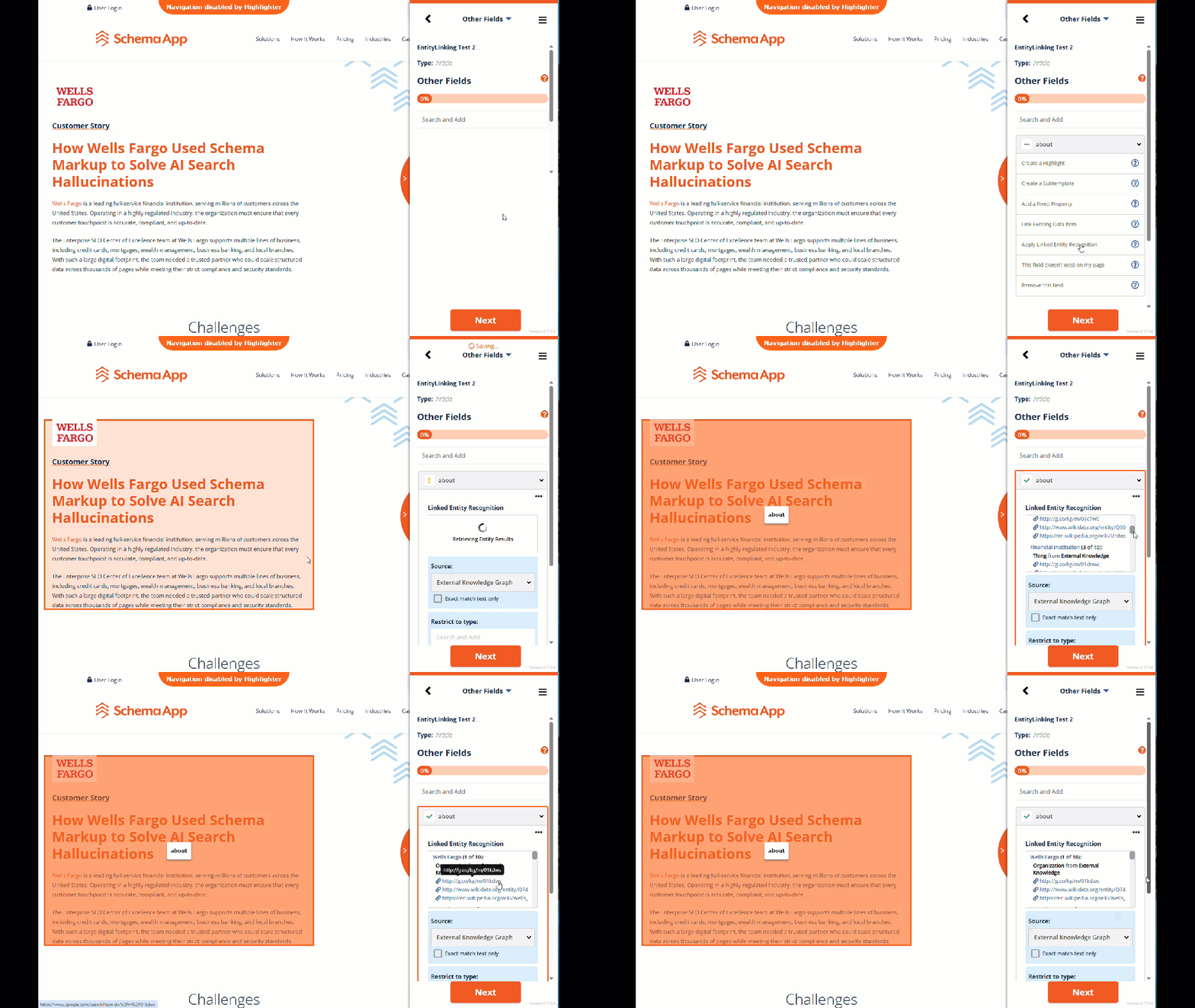
- Open an existing Highlighter template or create a new template.
- Select an existing property or create a new property where linked entities should be applied.
- Open the property settings, and click Apply Linked Entity Recognition.
- Select an area on your webpage where you'd like to apply Linked Entity Recognition
- Once results are retrieved, click any entity's source hyperlink to review the contents of that source
Note: If you are manually adding an xPath only the first match of the xPath will be parsed for entity linking.
Step 2: Configure your Knowledge Graph Source
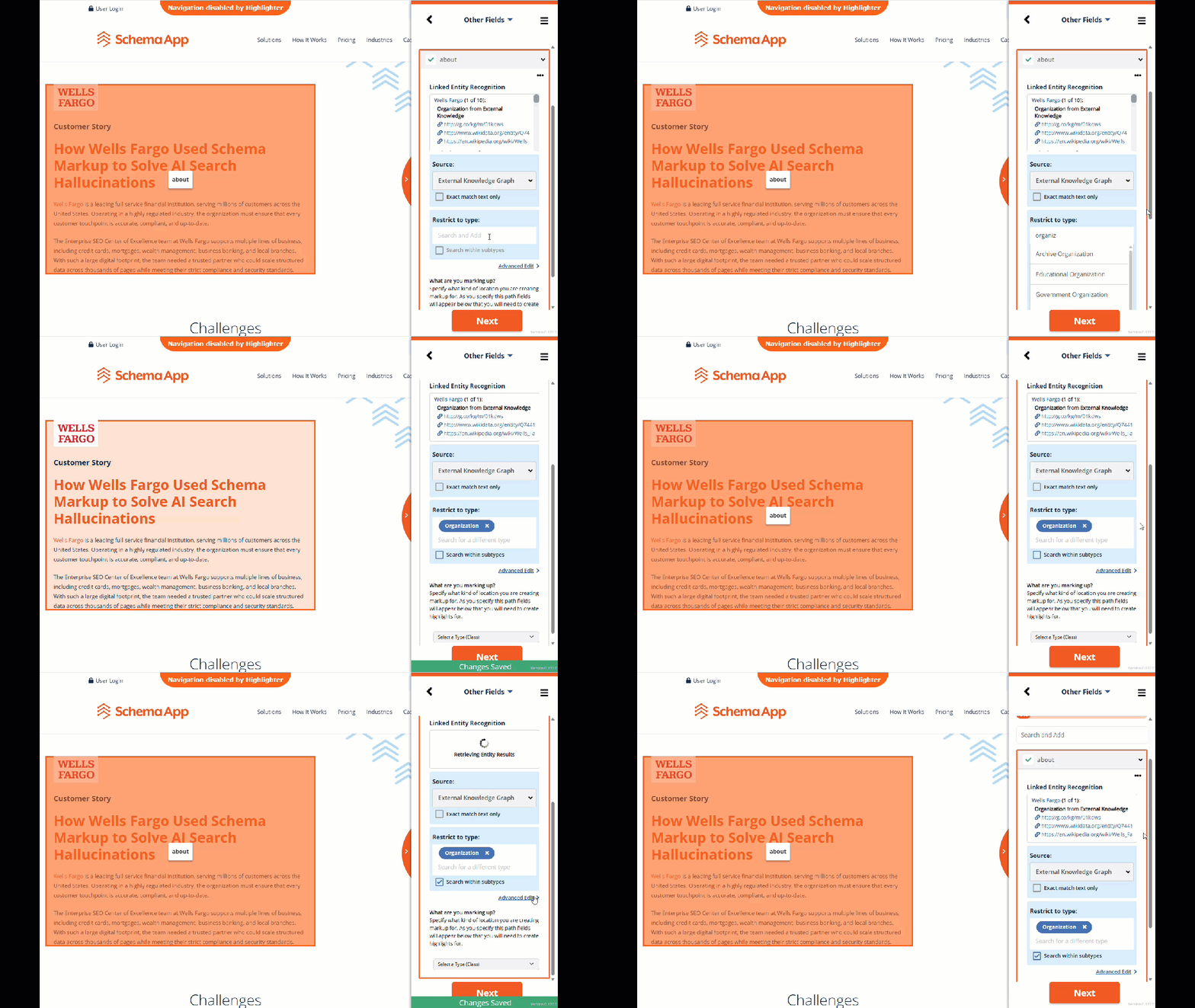
Choose which data source the Highlighter should search for matching entities. There are three options: External Entities Only, Internal Entities only or both Internal and External Entities.
1. External Knowledge Graph
The External Knowledge Graph is the default source option. It searches publicly available knowledge sources such as Google's Knowledge Graph, Wikipedia, and Wikidata.
This option is best when:
- Your content references well-known public entities.
- The entities you want to reference are unlikely to exist in your internal knowledge graph, or more efficiently described externally
2. Internal Knowledge Graph
The Internal Knowledge Graph option searches entities that exist within your organization's knowledge graph.
This option is best when:
- You want to strengthen relationships between your own entities.
- The entities being referenced are relevant to your business not represented in public knowledge graphs
Consideration: When using the Internal Knowledge Graph source, you can enable Exact Match Text Only to exclusively link to entities whose labels exactly match the selected text. This is useful when you want highly controlled matching behavior.
3. All Knowledge Graphs
The All Knowledge Graphs option searches both external knowledge graphs and your internal knowledge graph.
This option is best when:
- You want the broadest possible entity coverage.
- Your content references a mixture of public and proprietary entities.
- You are unsure where matching entities are likely to exist.
Step 3: (Optional) Restrict Type of Results
By default Schema App returns all available Types. However, users can enable "Type Restrictions" to limit the scope of possible Types. There are three options for which Types an Entity Linking tag can return. The options are: entities of any type, entities of a specific type, or entities of a specific type and its subtypes. If you use the default setting you must use a property that can accept Thing.
Consideration: Use the Schema Paths Tool or look at the schema.org type documentation to identify which property to use to connect your entity linking results to your template markup.
1. Any Type (Default Setting)
If you expect to receive entities of any type, you must use a property that expects schema.org/Thing so that entities of any type can be added to your content.
- Example 1: if applying to the article body of a BlogPosting, use the mentions or about property to capture entities of any type.
- Example 2: if applying to the "areas of expertise" of a Person's profile page, use the knowsAbout property to capture entities of any type.
2. Type Restriction: Specific Type Only
You can also restrict the entity linking results to a specific type in order to use more specific properties.
- Example 1: if you want to say a Service has an areaServed, restrict results to the Place type.
- Example 2: if you want to say a Product is from a brand, restrict results to the Organization type.
3. Type Restriction: Specific Type + Subtypes
By selecting "Search within subtypes" to your Type restriction, it can be extended to also accept entities of any of the subtypes of the specified type.
- Example 1: if you want to link to entities that are types as Organization and/or LocalBusiness, restrict results to the Organization type and select "Search within subtypes".
Step 4: Review and Validate Entity Linking in the Extension
Currently, entities will not be included in the JSON-LD preview. The primary way to audit entities before publishing will be to use the preview pane in the tag itself. It is important to confirm the tag targets the correct content. The recommended best practice to review results at least 3 URLs before publishing.
How To: Audit What Entity Linking Returns After Publishing
After saving the template, allow the Entity Linking some processing time to identify and link entities across eligible pages.
While you can validate individual URLs using the Schema Validator, we recommend reviewing the results using Entity Reports. Entity Reports provide a holistic view of all entities identified across all URLs where the Highlighter template has been applied, making it easier to evaluate entity linking performance at scale.
How To: Review Entities After Publishing
- Publish the Highlighter template
- Allow the template to deploy to eligible pages
- Use the Schema Validator to spot-check individual URLs
- Review the Entity Reports to evaluate entities identified across your site
- Confirm that identified entities accurately represent the content on your pages
Note: Entity linking results may not appear immediately across all pages. Depending on the number of pages being processed and deployment method, it may take time for all eligible entities to be identified and linked.
Reviewing Results on Individual URLs with the Validator
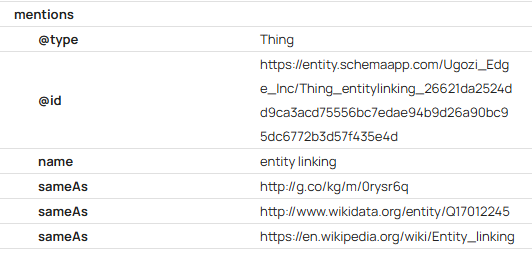
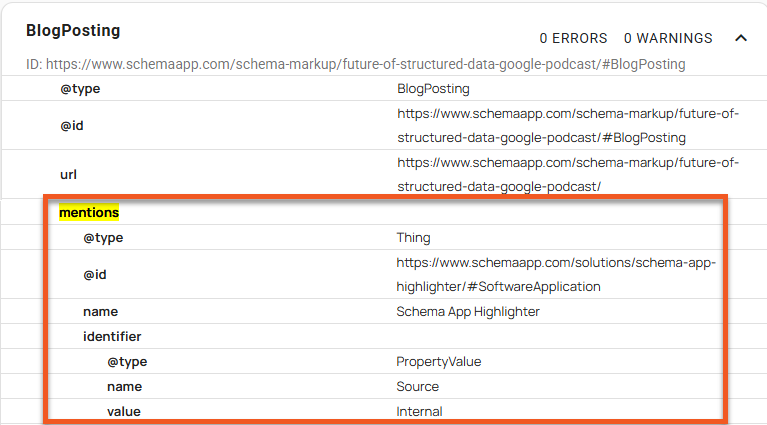
This is useful when testing a newly configured template or troubleshooting a particular page. The Schema Validator can be used to verify that linked entities are appearing in the structured data for a specific URL.
| External Entity | Internal Entity |
|
|
 |  |
Reviewing Results Across Your Site with Entity Reports
Entity Reports provide a consolidated view of the entities identified by Entity Linking across all URLs where the template has been applied. These reports can help you:
- Understand which entities are being identified most frequently.
- Verify that expected entities are being linked across your content.
- Identify incorrect or unexpected entity matches.
- Evaluate the overall quality of entity linking results.
For more information, see our Entity Reports documentation.
Managing Unexpected Entities
Despite best efforts, not every entity will be relevant or desired. The Entity Manager is an excellent tool to modify external entities. Internal entities must be modified using the tool that created them (e.g. Editor and Highlighter).
Managing Incorrect Entity Matches with the Entity Manager
If you identify entities that have been linked incorrectly, you can use the Entity Manager tool to review, modify, or block those entities. Common reasons to update or block an entity include:
- The wrong entity was selected for an ambiguous term or phrase.
- An entity is not relevant to your content.
- You want to prevent a specific entity from being identified in future runs.
- You want to associate the content with a different entity.
For more information, see our Entity Manager documentation.
Troubleshooting Missing or Unexpected Results
If expected entities do not appear, consider the following:
- The content may not contain recognizable entity references.
- The entity may not exist in the selected knowledge graph source.
- The selected property may not be appropriate for the identified entity type.
- If using Exact Match Text Only, the entity label may not exactly match the text found on the page.
- Recently configured entity linking may require additional time before all eligible pages have been processed.
Conclusion
Entity linking helps enrich structured data by connecting content to known entities in a knowledge graph. By understanding how Linked Entity Recognition works and selecting the appropriate source option, you can create more meaningful relationships between your content and the entities it references.
For most organizations, External Knowledge Graphs are useful for public entities, Internal Knowledge Graphs are useful for proprietary entities, and All Knowledge Graphs provide the most comprehensive coverage when both are important.
Was this article helpful?
That’s Great!
Thank you for your feedback
Sorry! We couldn't be helpful
Thank you for your feedback
Feedback sent
We appreciate your effort and will try to fix the article