This article explains how to configure Internal Entity Linking when applying Linked Entity Recognition to a property in a Schema App Highlighter template. Internal Entity Linking lets you identify entities from your own content knowledge graph and control which entities are eligible to be returned.
- Use Internal Knowledge Graph to search for entities in your organization’s projects instead of relying only on external knowledge graphs.
- Use Exact match text only, Internal Entity Source, and Entity Homes only to control how internal entities are matched and where they come from.
- After reading this article, you will understand what each Internal Entity Linking configuration does and when to use it.
Context, Required Knowledge, & Why This Article?
When you add a property to a Schema App Highlighter template, you can apply Linked Entity Recognition to identify entities in the content selected from the page. By default, Linked Entity Recognition searches external knowledge graphs for matching entities.
Selecting Internal Knowledge Graph from the Linking Entities from setting instead searches your content knowledge graph. It also makes additional matching rules available so you can control how internal entities are identified.
These settings are useful when you need greater control over entity matching, want to use entities from another project, or want to restrict results to canonical entities designated as Entity Homes.
Problem & Objectives
Problem: Internal knowledge graphs can contain multiple entities and may span multiple projects. Without appropriate matching rules, Linked Entity Recognition may return entities that are too broad for the intended use case or may not find an entity stored in another project.
Objective: This article explains how to configure Linked Entity Recognition to search the Internal Knowledge Graph and how to use its three matching configurations: Exact match text only, Internal Entity Source, and Entity Homes only.
Audience
- Schema App users who create or manage Highlighter templates
- Users configuring Linked Entity Recognition against an Internal Knowledge Graph
Familiarity with creating and configuring Schema App Highlighter templates is recommended before using these settings.
Configure Linked Entity Recognition to Use the Internal Knowledge Graph
Internal matching rules become available after you apply Linked Entity Recognition to a property and select Internal Knowledge Graph as the source for linking entities.
Apply Linked Entity Recognition
After adding a property to your Highlighter template, select Apply Linked Entity Recognition from the available actions for that property.
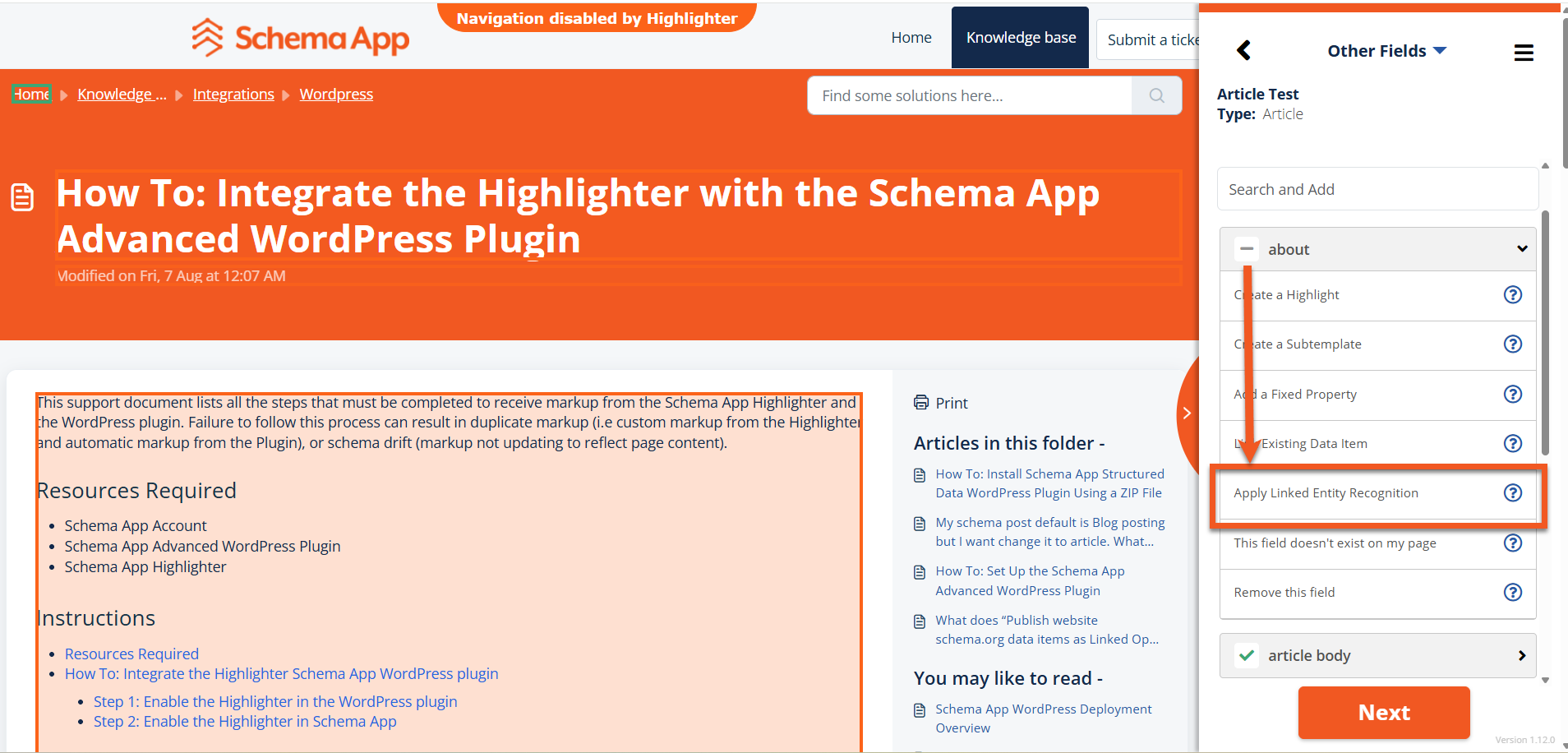
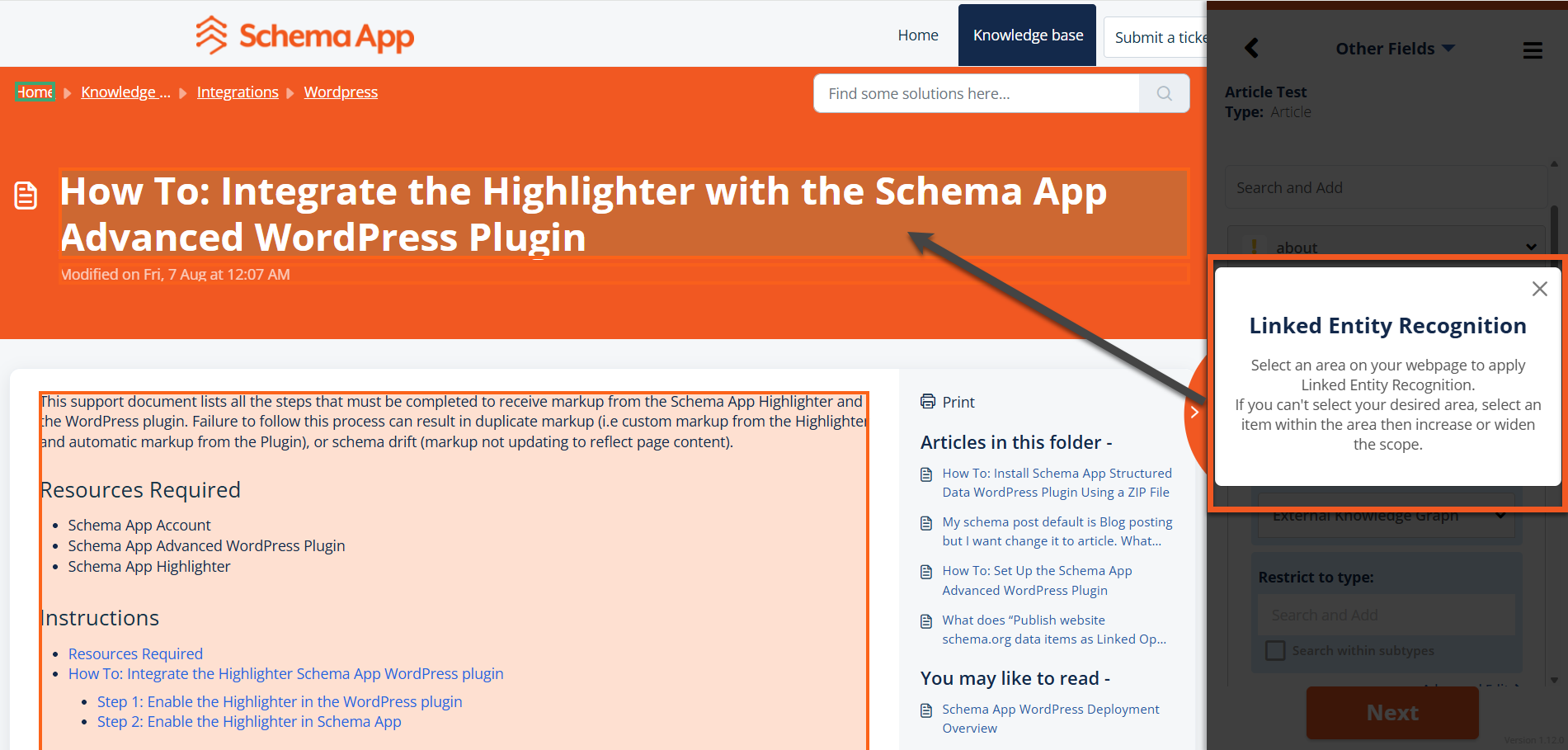
The Highlighter prompts you to select the area of the page where Linked Entity Recognition should run. Select the relevant content area. Linked Entity Recognition runs automatically against the selected content.
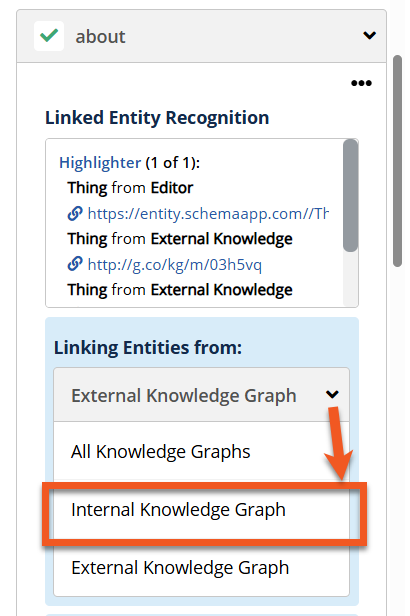
Select Internal Knowledge Graph
The Linking Entities from setting uses External Knowledge Graph by default. Open this dropdown and select Internal Knowledge Graph to search your content knowledge graph instead.
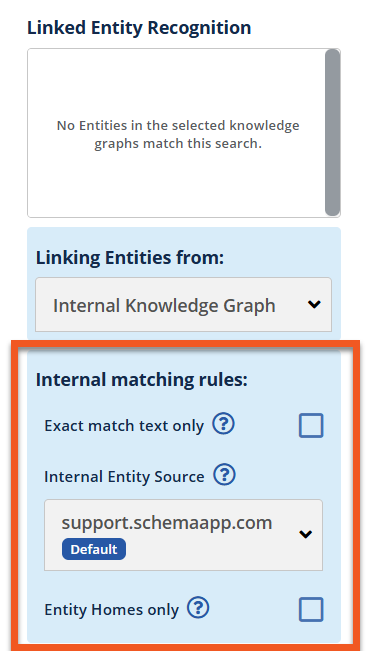
Selecting Internal Knowledge Graph displays the Internal matching rules section. This section contains three configurations:
- Exact match text only
- Internal Entity Source
- Entity Homes only
Internal Knowledge Graph Matching Rules
The Internal matching rules determine which internal entities Linked Entity Recognition can return. Configure these options according to the content being targeted and the entities you want to identify.
Exact Match Text Only
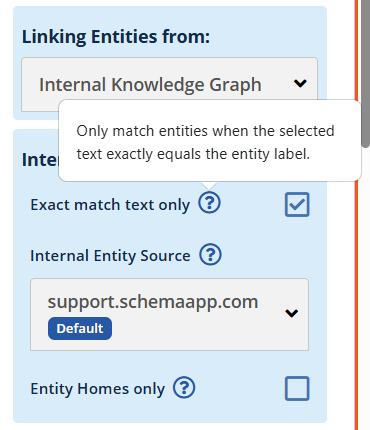
Enable Exact match text only when you want Linked Entity Recognition to return an entity only when the selected text exactly equals the entity's label. Partial matches are excluded.
When to Enable Exact Match Text Only
- When matching proper nouns, such as product names or people's names
- When matching branded terminology where precision is important
- When partial matching could identify irrelevant or ambiguous entities
When to Leave Exact Match Text Only Disabled
- When matching broader concepts where partial or fuzzy matching is acceptable
- When an entity label may appear in different grammatical forms in the page content
Example: Use Exact match text only when you want selected text to match an entity label character for character instead of allowing a partial match.
Internal Entity Source
By default, Internal Entity Linking searches for entities within the same project as the current domain. For example, when working on support.schemaapp.com, the default Internal Entity Source is the support.schemaapp.com project.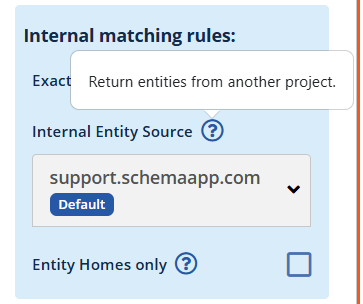
However, content on one domain may reference products, concepts, or other entities defined in a different project. The Internal Entity Source setting lets you search another project for those entities.
Selecting a Different Internal Entity Source
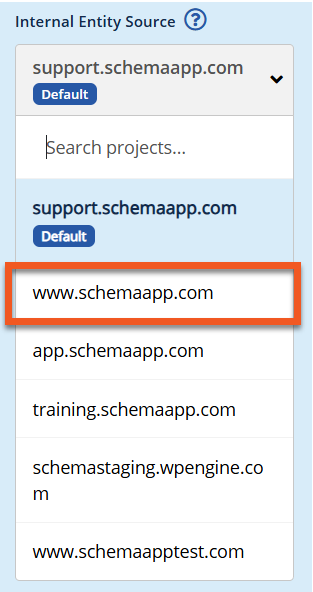
- Open the project dropdown under Internal Entity Source.
- Search the available projects by project name.
- Select the project containing the entities you want Linked Entity Recognition to use.
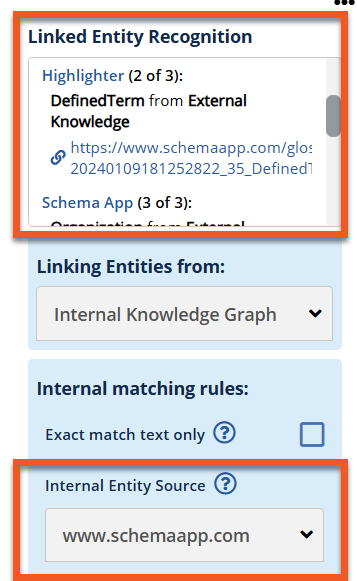
- Review the entity preview to confirm that the expected entities are returned from the selected project.
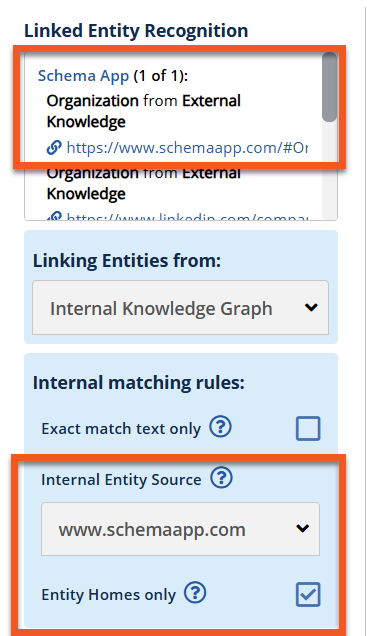
Example: An article on support.schemaapp.com may mention the Highlighter, while the Highlighter entity is defined in the www.schemaapp.com project. Setting Internal Entity Source to www.schemaapp.com allows Linked Entity Recognition to find and return that entity.
 |  |
Entity Homes Only
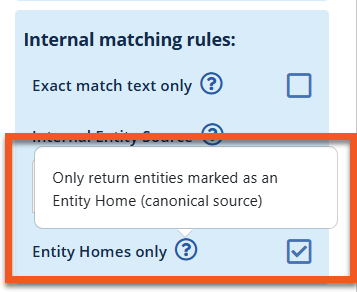
Enable Entity Homes only to restrict results to entities that have been designated as an Entity Home within the selected project. An Entity Home represents the canonical source page for that entity.
This setting narrows the entities that are eligible to be returned. An entity can exist in the selected project's knowledge graph and match the page content but still be excluded if it has not been designated as an Entity Home.
When to Enable Entity Homes Only
- When working with a large knowledge graph and you want to prioritize authoritative, well-defined entities
- When intentional entity linking is more important than maximizing the number of potential matches
Example: If both Schema App and Highlighter are identified in the selected project's knowledge graph, but only Schema App is designated as an Entity Home, enabling Entity Homes only returns Schema App and excludes Highlighter.
Choosing the Appropriate Internal Matching Rules
The three configurations address different aspects of Internal Entity Linking. They can be used to control the precision of the text match, determine which project supplies entities, and restrict eligible entities to canonical Entity Homes.
Use Exact Match Text Only for Precise Labels
Enable Exact match text only when the entity's label should correspond exactly to the selected page text. This is particularly useful for named products, people, and branded terminology.
Use Internal Entity Source for Cross-Project Entities
Change the Internal Entity Source when the entity you want to identify belongs to a different project than the page being marked up. After changing the source, review the preview to confirm that the intended entities are available.
Use Entity Homes Only to Restrict Results to Canonical Entities
Enable Entity Homes only when you want Linked Entity Recognition to return only entities that have been explicitly designated as canonical Entity Homes in the selected project.
Conclusion
Selecting Internal Knowledge Graph for Linked Entity Recognition gives you additional control over how entities in your content knowledge graph are identified. The Internal matching rules let you determine how precisely text must match, which project should supply the entities, and whether results should be restricted to Entity Homes.
- Exact match text only: Returns an entity only when its label exactly matches the selected text.
- Internal Entity Source: Searches for entities in a selected project, including a project other than the one associated with the current domain.
- Entity Homes only: Restricts results to entities designated as canonical Entity Homes within the selected project.
Review the Linked Entity Recognition preview after changing these configurations to confirm that the resulting entities match the intended entity-linking strategy.
Was this article helpful?
That’s Great!
Thank you for your feedback
Sorry! We couldn't be helpful
Thank you for your feedback
Feedback sent
We appreciate your effort and will try to fix the article