This article explains what Knowledge Assistant site scope is, why it matters when you first set up Knowledge Assistant, and how to configure which sites (and Content Knowledge Graphs) your assistant can use.
TABLE OF CONTENTS
- What Is Site Scope?
- Why Site Scope Matters
- Resources Required
- How To: Configure Site Scope
- After You Save
- Possible Errors and Troubleshooting
- Contact Support
What Is Site Scope?
Site scope is the list of Schema App project websites enabled for your Knowledge Assistant tenant. Each selected site maps to that property's Content Knowledge Graph.
When someone asks a question in Knowledge Assistant (in the Schema App app or in an embedded experience), NLWeb retrieves and synthesizes answers from the graphs of the sites included in your site scope. Sites you leave out are not queried.
Why Site Scope Matters
Site scope is foundational configuration for Knowledge Assistant. It controls two things:
- Which graphs NLWeb can use: Answers, citations, and coverage are limited to the Content Knowledge Graphs for the sites you select. If a site is missing from scope, Knowledge Assistant cannot draw on that site's structured data.
- Which sites can embed Knowledge Assistant: When the embedded widget loads, Schema App compares the embedding page's origin with the sites in Site Scope Configuration. A site that is not in scope cannot successfully connect the embed.
Important: Check Knowledge Assistant Settings when you first initialize Knowledge Assistant. Confirm site scope early so evaluation questions hit the right graphs and so any planned embed origins are allowlisted before you add the embed code.
Resources Required
- A provisioned Knowledge Assistant tenant
- Account administrator access to Schema App Settings
- At least one website configured on a Schema App project (available sites come from your project website URLs)
How To: Configure Site Scope
Step 1: Open Knowledge Assistant Settings
In Schema App, go to Settings > Knowledge Assistant.
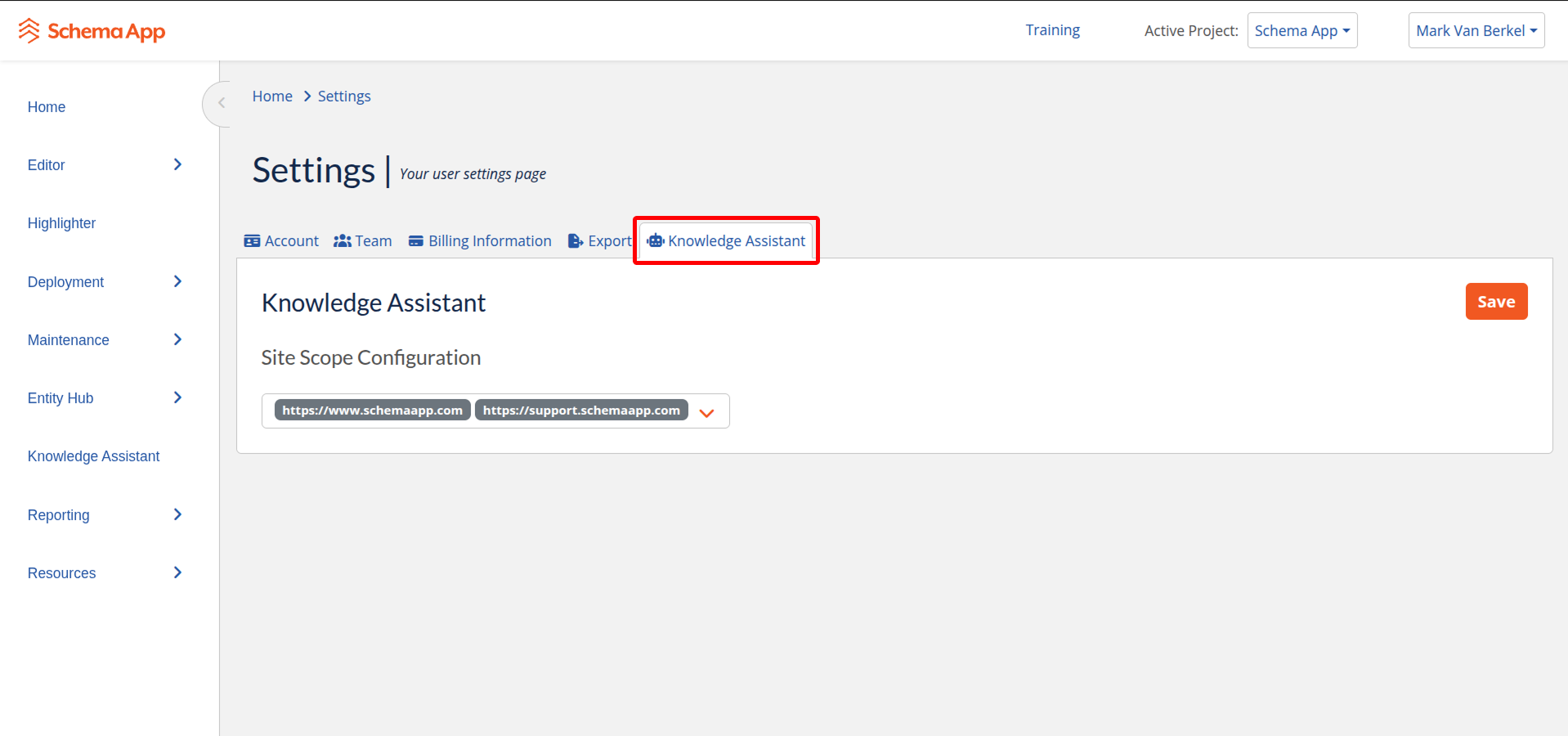
If this is your first time opening Knowledge Assistant after provisioning, review this page before you rely on answers in the app or publish an embed. Site Scope Configuration is on this Settings page.
Step 2: Select Sites in Site Scope Configuration
Under Site Scope Configuration, open the site selector and choose one or more sites the Knowledge Assistant should use.
- Select every site whose Content Knowledge Graph should be queryable.
- Include every website origin where you plan to embed the Knowledge Assistant.
- You must select at least one site before you can save.
The available sites are based on the website URLs configured for your Schema App projects. You can review those project website URLs from the Schema App Home page.
Note: If only one site is listed, that is expected for single-site accounts. Additional sites appear after more project websites are available on your account. If a site you need is missing, confirm its project website URL or contact your Customer Success Manager.
Step 3: Save Your Changes
Select Save at the top of the Knowledge Assistant Settings page. Wait for the success confirmation before testing queries or the embed.
Changes apply to both the in-app Knowledge Assistant experience and any embedded Knowledge Assistant that uses your tenant.
After You Save
- In-app evaluation: Open Knowledge Assistant and ask questions that should be answered from each selected site's graph. If something is missing, confirm that site is still in scope.
- Multi-site accounts: With more than one site in scope, Knowledge Assistant can synthesize across those graphs (depending on the site filter in the assistant UI).
- Embedding: After the embedding origin is included in site scope, add the embed code as described in How To: Embed the Knowledge Assistant on Your Site.
Possible Errors and Troubleshooting
- Save is disabled or you see "Please select at least one site": Select one or more sites in Site Scope Configuration, then try again.
- No sites are available: Add a website to a Schema App project first, then return to Knowledge Assistant Settings.
- Answers miss content you expect: Confirm the property that holds that content is selected in site scope, and that its Content Knowledge Graph is populated.
- The embed appears but does not connect: Confirm that the embedding website's origin is included in Site Scope Configuration and matches the project website URL.
- A required site is not listed: Confirm the project website URL on the Schema App Home page, or contact your Customer Success Manager to provision additional sites for your tenant.
Contact Support
Contact your Customer Success Manager or Schema App Support if you need help reviewing site scope, adding project websites, or confirming which graphs are available to your Knowledge Assistant tenant.
Helpful details to include:
- Your Schema App account and project name
- The site URLs you expected to see in Site Scope Configuration
- Whether the issue is in-app answers, embedding, or both
- A screenshot of the Knowledge Assistant Settings page (if available)
Was this article helpful?
That’s Great!
Thank you for your feedback
Sorry! We couldn't be helpful
Thank you for your feedback
Feedback sent
We appreciate your effort and will try to fix the article