This article explains how to configure and embed the Schema App Knowledge Assistant on your website, adjust its dimensions, and let visitors submit questions directly or through a page URL.
TABLE OF CONTENTS
- Resources Required
- How To: Embed the Knowledge Assistant
- Load Behaviour
- How To: Query the Knowledge Assistant
- Possible Errors and Troubleshooting
- Contact Support
Resources Required
- A provisioned Knowledge Assistant tenant
- Account administrator access to configure the Knowledge Assistant site scope
- Access to add HTML and JavaScript to the website where the Knowledge Assistant will appear
Schema App identifies the correct Knowledge Assistant tenant from the embedding website's origin. You do not need to add an API key or an inline configuration block.
How To: Embed the Knowledge Assistant
Step 1: Configure Site Scope
In Schema App, go to Settings > Knowledge Assistant > Site Scope Configuration. Select the sites that the Knowledge Assistant can query, then select Save.
When the embedded Knowledge Assistant requests its configuration, Schema App compares the origin of that request with the sites selected here. The available sites are based on the website URLs configured for your Schema App projects. You can review those project website URLs from the Schema App Home page.
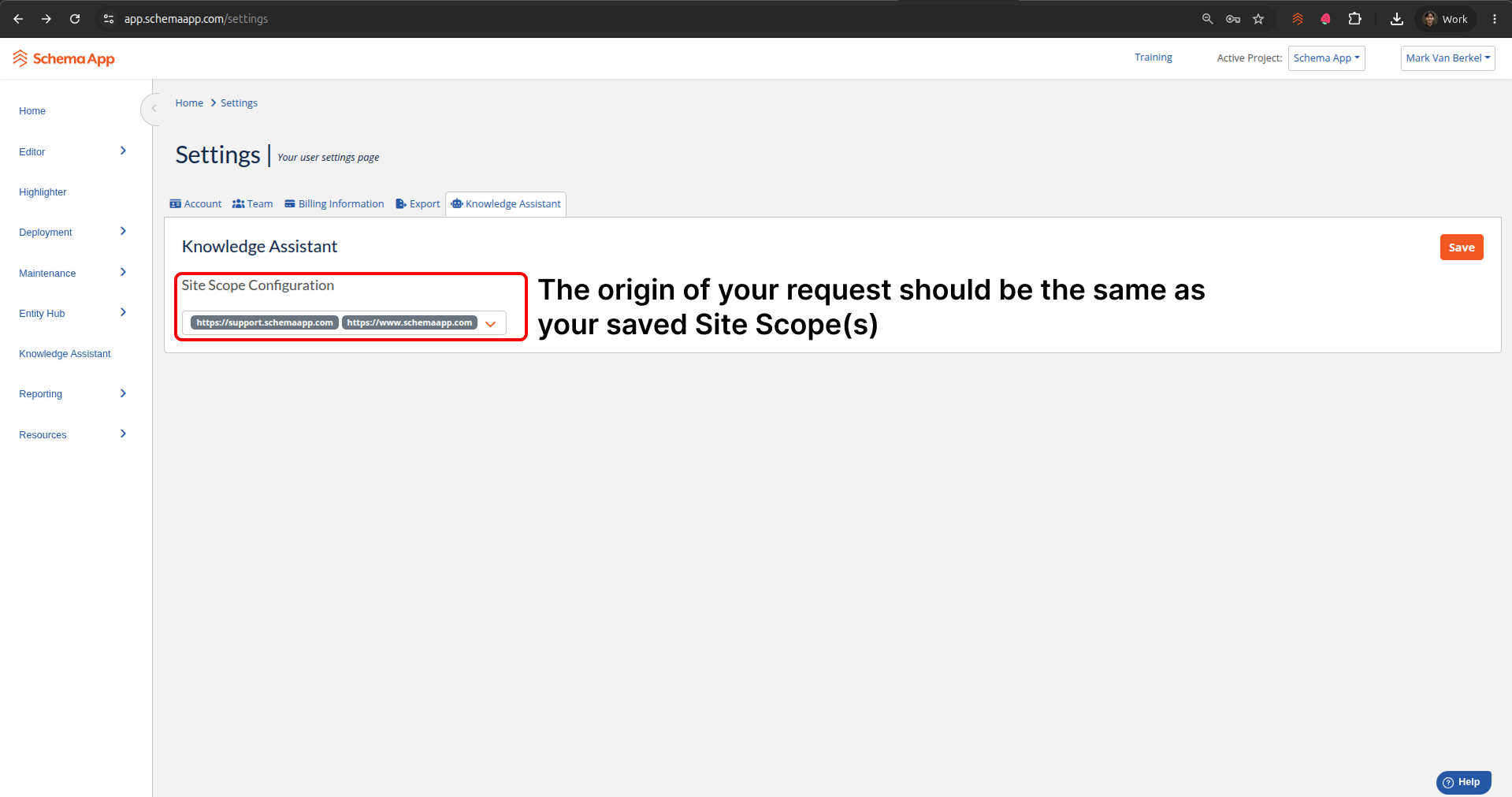
Note: If the website where you are embedding the Knowledge Assistant is not available in Site Scope Configuration, confirm its project website URL or contact your Customer Success Manager.
Step 2: Add the Embed Code
Add the following HTML where you want the Knowledge Assistant to appear:
<div id="knowledge-assistant" style="height: 600px; width: 100%;"></div>
<script src="https://app.schemaapp.com/js/knowledge-assistant.js"></script>
The script finds the element with the ID knowledge-assistant and mounts the Knowledge Assistant inside it. Place the container before the script so the element exists when the script loads. Use this ID only once on the page.
The script is self-contained and loads the application and its styles. No separate stylesheet is required.
Step 3: Set the Dimensions
The Knowledge Assistant fills the available width of its container. Change the container's width and height to fit your page layout:
<div id="knowledge-assistant" style="height: 700px; max-width: 1200px; margin: 0 auto;"></div>The container height controls how much vertical space is available for the conversation. We recommend a height of at least 400 pixels. If you do not set a custom height, the embed uses its default responsive height.
You can use your site's stylesheet instead of inline styles:
#knowledge-assistant {
    width: 100%;
    height: 600px;
}
Load Behaviour
These details help teams planning performance, Content Security Policy, and CMS library loading (for example Drupal libraries with defer).
- One self-contained script: The embed loads a single
knowledge-assistant.jsbundle. It does not download additional JavaScript code-split chunks after that file runs. Styles are included in the same bundle. - What happens after the script runs: The widget mounts into
#knowledge-assistant, requests tenant configuration over HTTPS from Schema App, then opens a WebSocket connection to the Knowledge Assistant backend. Conversation history for that browser is stored in IndexedDB on the visitor's device. - Loading with
defer: Yes — it is safe to load the script withdefer(including as an external Drupal library). Deferred scripts run after the HTML document is parsed, so the#knowledge-assistantcontainer must already be present in the page HTML. Keep the container in the markup before the script when possible. Do not useasyncif that could run the script before the container exists. - WebSocket timing: The WebSocket opens during widget initialization on page load, not on the visitor's first click or first question. It stays open for the browser session so chat can stream when a question is sent.
- Network activity after load: After initialization, the embed does not keep pulling content from your site or Schema App until a visitor sends a question (or a URL
squery auto-sends). Answer results then stream over the open WebSocket.
Note: If your site uses a strict Content Security Policy, allow the Schema App script host, the configuration HTTPS endpoint, and the tenant WebSocket host. Contact Schema App Support for the allowlist values for your tenant.
How To: Query the Knowledge Assistant
Step 4: Enter a Query
Visitors can type a question in the message box and select Send. They can also press Enter to send a question or Shift + Enter to add a new line.
The Send button becomes available after the Knowledge Assistant connects, at least one configured site is available, and the message box contains text. A visitor must wait for the current response to finish before sending another question in the same conversation.
Known issue: We are aware that answers may be mixed up when a follow-up query is added after the original query. We are investigating this issue.
Step 5: Send a Query from the Page URL
Add an s query parameter to the URL of the page containing the Knowledge Assistant. The embed reads the parameter and sends its value after the Knowledge Assistant is ready.
For example:
https://www.example.com/ask/?s=How%20do%20I%20create%20schema%20markup%3FAlways URL-encode the query when constructing the link. After reading the query, the Knowledge Assistant removes the s parameter from the address bar and sends the query once. Other query parameters and URL fragments remain in place.
If a visitor edits or clears the prefilled message before the connection is ready, the Knowledge Assistant respects that change and does not automatically send the original query.
Possible Errors and Troubleshooting
- The Knowledge Assistant does not appear: Confirm that the container ID is exactly
knowledge-assistant, the container appears before the script, and the script URL ishttps://app.schemaapp.com/js/knowledge-assistant.js. - The embed appears but does not connect: Confirm that the embedding website is included in Site Scope Configuration. Contact your Customer Success Manager if the site needs to be added.
- The embed is too short or content overflows: Increase the height of the
knowledge-assistantcontainer. Use at least 400 pixels. - The
squery does not send: Confirm that the value is not empty, is URL-encoded, and that the tenant has at least one configured site. - Your site uses a strict Content Security Policy: The page must permit the Schema App script and API connection, the configured Knowledge Assistant WebSocket connection, and the fonts and styles used by the embed. Contact Schema App Support for the allowlist values for your tenant.
Contact Support
Contact your Customer Success Manager or Schema App Support if you need help provisioning the Knowledge Assistant, adding an embedding site, or confirming your tenant's connection settings.
Helpful details to include:
- Your Schema App account and project name
- The URL where you are embedding the Knowledge Assistant
- A screenshot or description of the behavior
- Any browser console or Content Security Policy errors
Was this article helpful?
That’s Great!
Thank you for your feedback
Sorry! We couldn't be helpful
Thank you for your feedback
Feedback sent
We appreciate your effort and will try to fix the article