Schema App's Akamai integration bundle includes error message support. This suport document outlines how to access., interpret and action those messages.
Notes: Status messages need Edge Worker bundle version 1.4 or later (June 2026), and multiple-hostname setups need version 1.5 or later (October 2026). If your bundle is older, follow steps 1.1 and 1.2 of the setup instructions to update it.
TABLE OF CONTENTS
Turn On Debug Mode
The X-SchemaApp-EW-Status header only appears when debug mode is on. It is off by default, so if you do not see the header, check this first.
- In Akamai Property Manager, add the user-defined variable PMUSER_SCHEMAAPP_DEBUG on the Edge Worker behavior and set it to true (1 or yes also work).
- Save and activate the property version to staging (or production, if that is where you are testing).
- Follow the steps below.
- When you are finished, remove the variable or set it to any other value, and activate again.
While debug mode is on, the worker also writes diagnostic messages to your Akamai EdgeWorker logs.
How To: Review Network Header Responses
Navigate to the Network Tab and review response from the X-Schemaapp-Ew-Status to learn which troubleshooting action to take.
Step 1: Open Developer Tools and Emulate a Permitted Bot
- Navigate to the Developer Tools (CTRL + Shift + I or Right Click > Inspect).
- Ensure you are emulating a user agent that is permitted according to the Edge Worker Request Header → User-Agent settings. Review this support document for information on how to emulate a different user agent.
- Reload the page, proceed to Step 2.
- If you are blocked, the SchemaBot may need to be allowlisted. Review this support documentation for information on allowlisting SchemaBot.
- If you still see no X-SchemaApp-EW-Status header, confirm debug mode is on and that the User-Agent you are emulating is in the Schema App Inject rule's bot list. Without both, the worker does not add the header.
Step 2: Navigate to Network Tab and Check the Document Headers
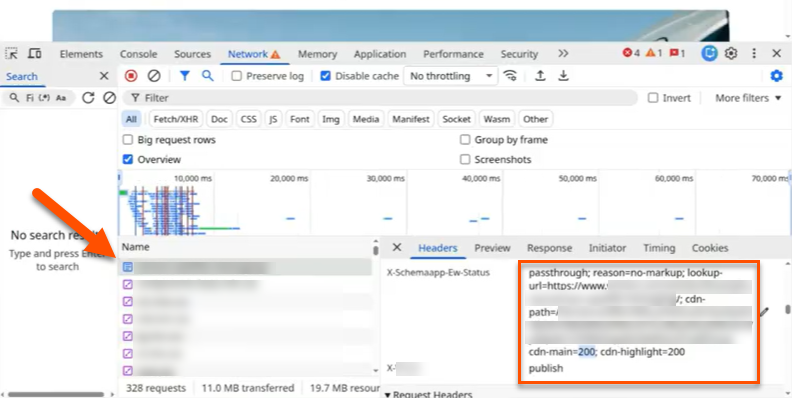
Schema App scripts run a response header with information about the status, URL, Account ID, and CDN Access messages
- Navigate to the Network tab
- Look for the Document, it will be first in the list of requests
- Scroll down the "Headers" tab to the X-Schemaapp-Ew-Status header
- Observe information about the following:
- reason
- lookup-url
- cdn-path
- cdn-main
- cdn-highlight
Alternative: Check with curl
You can read the same header from the command line. Use a bot User-Agent from your Schema App Inject rule:
curl -sI -A "Mozilla/5.0 (compatible; SchemaBot/1.2; +https://www.schemaapp.com/bot/)" \
  "https://<your-hostname>/<path>" | grep -i X-SchemaApp-EW-Status
Step 3: Interpret and Action the Reponse Messages
The responses in the header will guide next steps and troubleshooting actions. There are up to 6 relevant pieces of data
Status
This value will be Injected, Passthrough, Bypass or Error. Injected means markup was added to the page. Passthrough means the worker ran but returned your page unchanged; the reason says why. Bypass means the worker found no usable configuration for this request and did not contact Schema App's CDN. Error means the worker could not fetch the page from your origin. The following values will provide further troubleshooting information.
Reason
This identifies if the request was successful and if not, why it failed. Reasons include:
- no-markup: the Edge Worker ran but CDN returned no markup for this URL. Includes lookup URL and CDN path.
- origin-non-ok: Origin returned a non-2xx status.
- missing-account-id: PMUSER_SCHEMAAPP_ACCOUNT_ID is missing or empty (single-project setup). Check the variable name has no leading or trailing spaces.
- cdn-base-url-mismatch: the configured CDN base (PMUSER_SCHEMAAPP_CDN_BASE_URL, or the matched baseUrl in PMUSER_SCHEMAAPP_PROJECTS) does not match the request host. Shows configured vs expected values. It must be your own hostname, not data.schemaapp.com.
- origin-rejected: Origin subrequest failed entirely (502 response).
- invalid-projects-config: PMUSER_SCHEMAAPP_PROJECTS is set but is not a valid JSON array. Check for missing quotes, commas or brackets.
- no-project-match: PMUSER_SCHEMAAPP_PROJECTS is set but no entry matches this hostname and path. Shows the host and path that were checked. Hostnames must match exactly, so www.example.com and example.com need separate entries.
Lookup-URL
This is the URL as represented in Schema App's systems. Check this to see if there are mismatches between this value and the live and/or canonical URLs.
CDN-Path
This is the Account ID and unique identifier for this URL in Schema App's systems. Check this to see if the Account ID is correct. If you use PMUSER_SCHEMAAPP_PROJECTS, this should start with the accountId of the entry for this hostname and path. Check each hostname and path-based project separately.
Note: Pay particular attention to whether it is the correct subAccount in the context of pre-PROD testing
CDN-Main
This is the status messsage received when the request communicated with Schema App's Editor cache
The value is the HTTP status code, or error if the request failed. If it includes upstream= with anything other than cloudfront (for example upstream=x-powered-by=...), the request reached your own origin instead of Schema App's CDN. Check the Conditional Origin rule.
CDN-Highlight
This is the status messsage received when the request communicated with Schema App's Highlighter markup cache.
Common Issues
- No CDN subrequests / only one subrequest: For a single project, check both variables are set with exact names and that PMUSER_SCHEMAAPP_CDN_BASE_URL is your property host (e.g. https://www.yourdomain.com), not https://data.schemaapp.com. For multiple hostnames, check PMUSER_SCHEMAAPP_PROJECTS has an entry for this exact hostname. The status header will show bypass with the reason.
- 503 on CDN subrequests: Set the Conditional Origin's Forward host header to Origin hostname so CloudFront receives Host: data.schemaapp.com.
- Worker not running (no header even with debug on): Ensure the request User-Agent matches one of the bot patterns in the Schema App Inject rule.
- Stale or wrong JSON-LD: Ensure the Conditional Origin rule has Caching: NO_STORE. If that rule (or a parent) caches responses from the Schema App CDN, bots may receive outdated markup.
Was this article helpful?
That’s Great!
Thank you for your feedback
Sorry! We couldn't be helpful
Thank you for your feedback
Feedback sent
We appreciate your effort and will try to fix the article
