This article outlines how to update your payment info (e.g. Credit Card or billing address) and how to download your past invoices.
Note: This article is primarily intended for self-service Pro customers. It may or may not apply to some Enterprise tier customers depending on your payment method. Contact your CSM for more information if needed.
TABLE OF CONTENTS
How To: Update Your Payment Information
Follow these steps to update your payment information.
Step 1: Log into Schema App and Navigate to your Settings
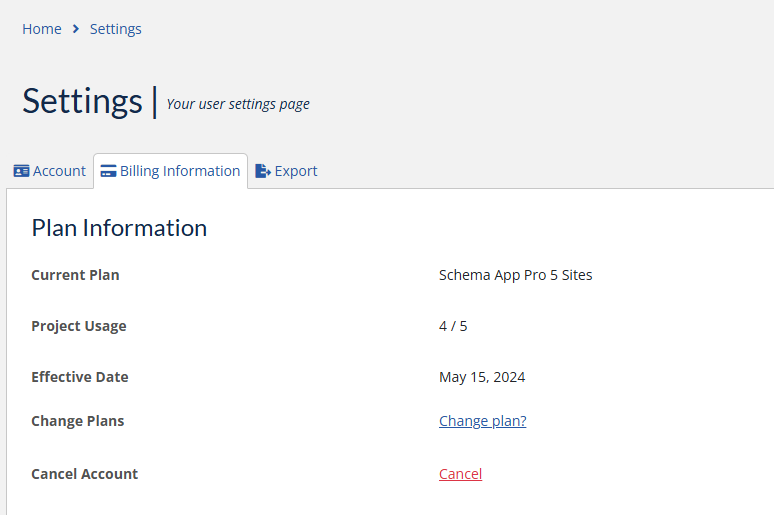
Find your account settings in the dropdown selector in the top right of the app. Navigate to the "Billing Information" tab.
Step 2: Select the Card and Invoicing Details button
Clicking the Card and Invoicing Details button will open a new tab in Chargedesk. This is where you can update your billing information.

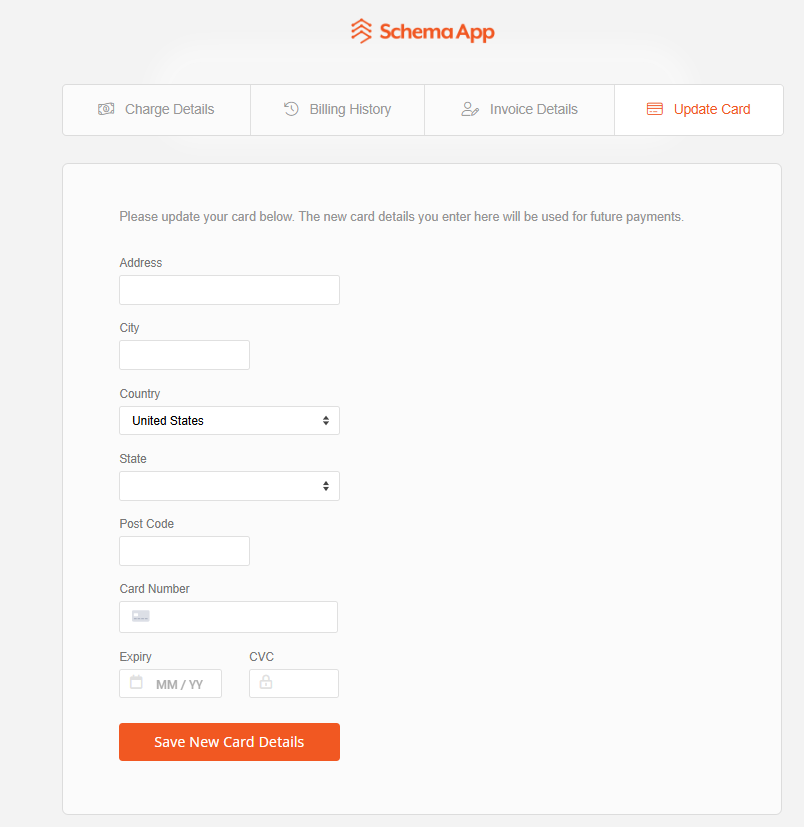
Step 3: Navigate to Update Card and Enter Your Information
Add your details and select "Save new card details".
How To: View Prior Invoices
Follow these steps to view and download past invoices and receipts.
Step 1: Log into Schema App and Navigate to your Settings
Find your account settings in the dropdown selector in the top right of the app. Navigate to the "Billing Information" tab.
Step 2: Select the Card and Invoicing Details button
Clicking the Card and Invoicing Details button will open a new tab in Chargedesk. This is where you can update your billing information.
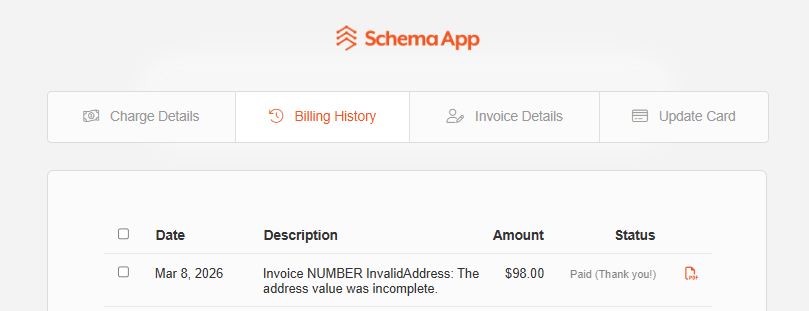
Step 3: Navigate to Billing History
Navigate to the Billing History tab. This will show a list of all past payments (successful and attempted). You can click the PDF icon on the righthand column to download invoices. Each row is a clickable link that will open the invoice in a new page.
Was this article helpful?
That’s Great!
Thank you for your feedback
Sorry! We couldn't be helpful
Thank you for your feedback
Feedback sent
We appreciate your effort and will try to fix the article