TL;DR
- Task: Choose which entities in Entity Hub matter most, review them for accuracy, and mark them as Optimized.
- When to do it: External Entity Linking has identified entities in your content (often hundreds or thousands), and you need to decide which ones to review first. Do this when you first set up Entity Hub, and again when new priority content, products, or services are published.
- What it accomplishes: Optimized entities have been checked for accuracy, show performance data in Entity Performance Analytics, and can be merged and organized into topics. Your most important entities are then described correctly in your Schema Markup.
- After reading: You'll know how to use the Entity View report to prioritize entities, check each entity's type and sameAs values, fix or block entities that are wrong, and mark the right ones as Optimized.
Note: Projects with active External Entity Linking tags can edit up to 5 entities. Projects on the Entity Hub package can optimize entities up to the limit of their tier.
TABLE OF CONTENTS
- Context, Required Knowledge, & Why This Article?
- How To: Prioritize Your Entities
- How To: Optimize an Entity
Context, Required Knowledge, & Why This Article?
External Entity Linking identifies the entities (people, places, organizations, products, services, and concepts) in your website content and adds them to your Schema Markup. Each entity gets a name, a Schema.org type, and sameAs links to authoritative sources such as Wikipedia, Wikidata, and Google's Knowledge Graph.
Most identified entities are correct, but not every one is. Some get the wrong type or link to the wrong sameAs source, and some aren't relevant to your organization at all. You don't need to review every entity. This article shows you how to use the Entity View report to find the entities that matter most, then review and optimize them in the Entity Manager.
Problem & Objectives
Problem: Entity Hub may identify 10s, 100s, or 1000s of entities in your content, and it isn't obvious which ones to review or whether they've been described correctly.
Objective: Build a focused list of your most important entities, check that each one is accurate, and mark it as Optimized so you can track its performance and use it in topics.
Pre-Requisites
- External Entity Linking is active on your project, and entities have been identified in your content.
- You have access to the Entity Hub reports and the Entity Manager.
- You know your organization's key products, services, people, and areas of expertise, or you're working with someone who does.
How To: Prioritize Your Entities
Use the Entity View tab of the Entity Reports to decide which entities to optimize first. This report lists every identified entity with its URL count, type, and sameAs values. For more information, see Entity Reports.
Step 1 Identify the Entities Most Important to Your Organization
Start with the entities that best represent your organization. Depending on your industry, you may already know what these are. Common examples include:
| Example | Schema.org Type |
|---|---|
| Your organization | https://schema.org/Organization |
| Partner, affiliate, or sub-organizations | https://schema.org/Organization |
| Products or services | https://schema.org/Thing |
| Areas of expertise | https://schema.org/Thing |
| Founders, authors, or experts | https://schema.org/Person |
| Service areas | https://schema.org/Place |
Use the search box in the Entity View report to check whether each entity has been identified.
Note: The same real-world thing may appear as several entities with the same or similar names. Optimize the one with the highest URL count first, then merge the others into it. See How To: Merge Duplicate Entities in the Entity Manager.
Step 2 Check How Often Each Entity Is Identified
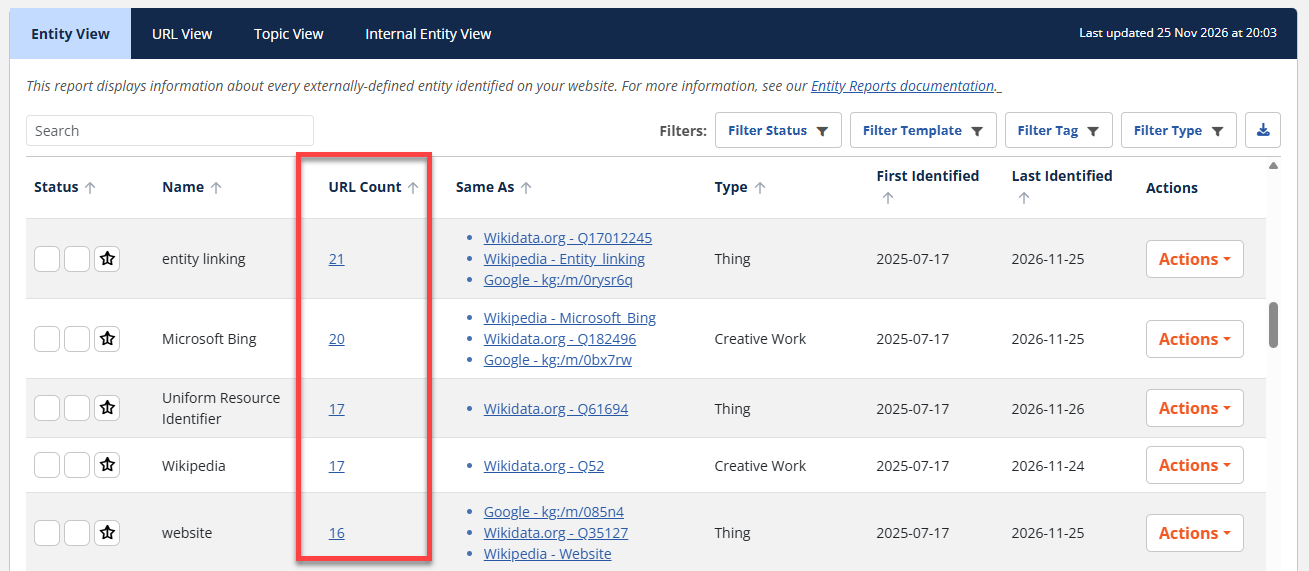
The Entity View report sorts entities by URL count, from highest to lowest. URL count is the number of web pages where the entity was identified and added to the Schema Markup. Entities with a high URL count affect the most pages, so they're usually a good place to start.
Review the entities at the top of the list. Most should be expected. If a top entity surprises you, it may need to be edited or blocked.
Step 3 Check the Entity Type
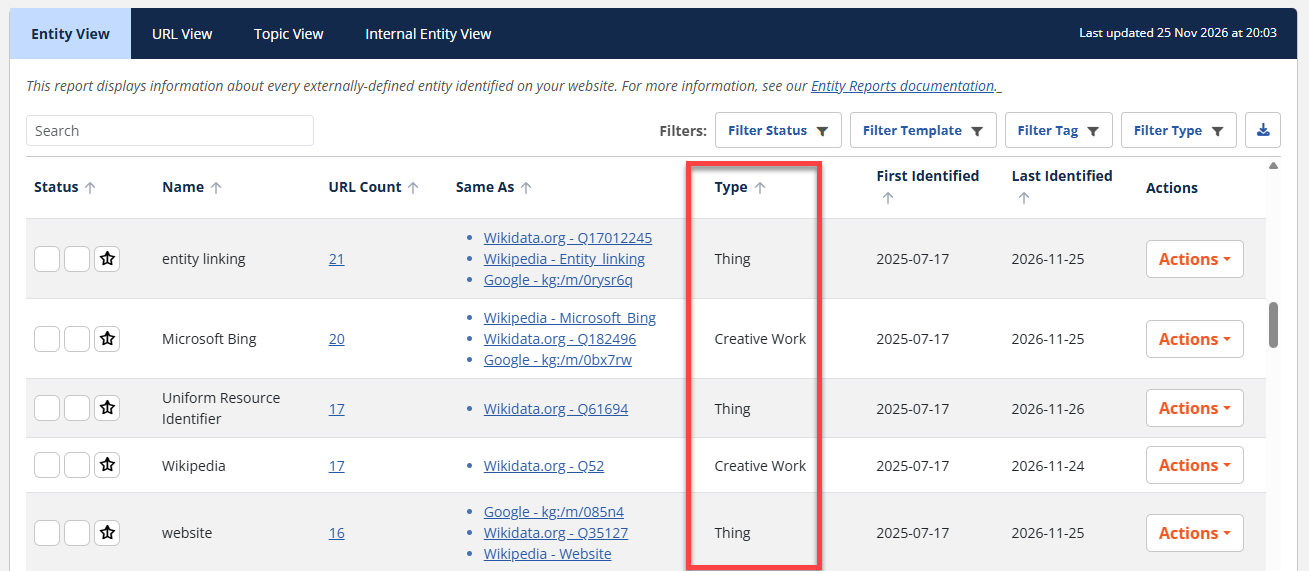
Look at the type assigned to each of your priority entities. An unexpected type means the entity may need editing, and it's a sign that its sameAs values should be checked too.
For example, the Microsoft Bing entity is typed as Creative Work however it is more accurately described as a Thing. This signals the metadata about this entity is worth a closer look.
Step 4 Check the sameAs Values
The sameAs property links an entity to authoritative knowledge bases that describe the same thing. Each value is a URI that opens a web page, so you can check whether the entity points to the right thing.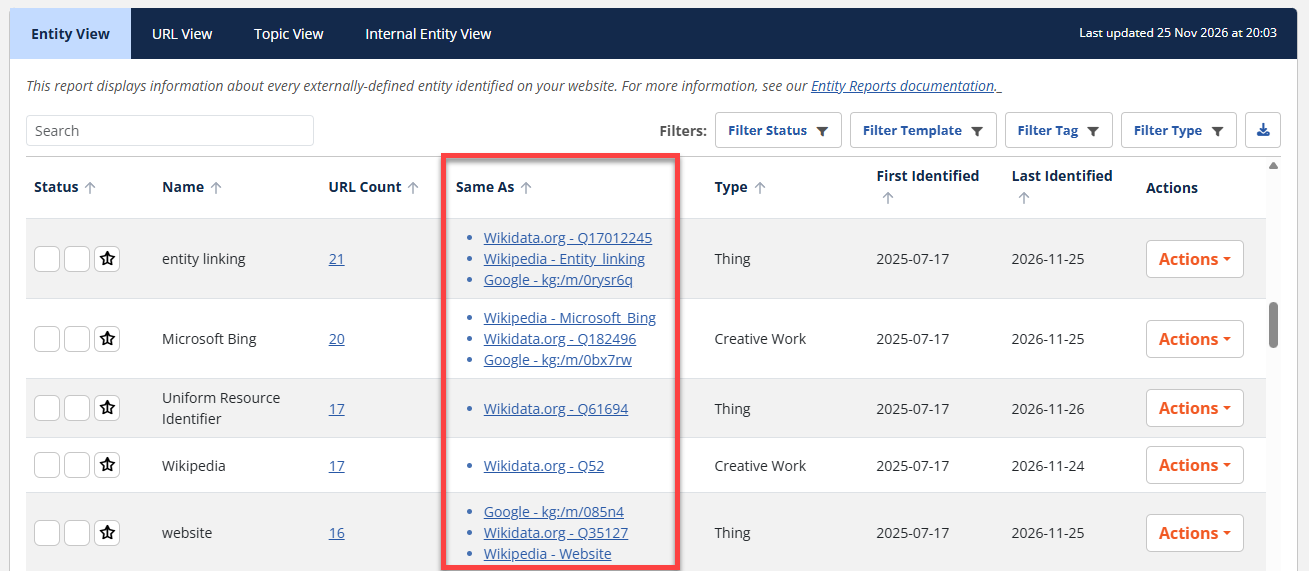
For example, the Microsoft Bing entity has been identified in all three sources:
- Wikipedia - Microsoft_Bing
- Wikidata.org - Q182496
- Google - kg:/m/0bx7rw
If a sameAs value points to an incorrect resource, correct it in the Entity Manager by selecting Actions > Edit Entity.
How To: Optimize an Entity
Once you know which entities to focus on, review each one in the Entity Manager, fix anything that's wrong, and mark it as Optimized. Marking an entity as Optimized means it:
- Has been reviewed for accuracy
- Will have performance data in Entity Performance Analytics
- Can be merged with duplicate entities and added to topics
Step 1 Open the Entity in the Entity Manager
Open the entity in either of these ways:
- From the main menu, go to Entity Manager, find the entity, and click Edit Entity.
- From the Entity View report, click Actions > Edit Entity next to the entity.
Step 2 Correct the Entity's Properties
In the External Properties section, correct any values that were wrong in your review:
- Preferred Label: The entity's name in your Schema Markup. Changing it doesn't change which text in your content matches this entity.
- SameAs: Remove incorrect values. To add a new one, type the entity's name in the field and select the right match from the list.
- Type: Change the Schema.org type if it's incorrect.
For a full description of every field, see Entity Manager.
Note: Type products and events as Thing, not Product or Event. Product and Event can be eligible for Rich Results, so they trigger errors in Google Search Console enhancement reports. External Entity Linking types them as Thing for this reason.
Step 3.A Mark the Entity as Optimized
If the entity is relevant and now accurate, mark it as Optimized in either of these ways:
- In the Entity Manager, click the Is In Scheme button in the toolbar and change the status to Optimized.
- In the Entity View report, select the checkbox in the Optimized column.
Step 3.B Block the Entity
If the entity is irrelevant or was identified by mistake, block it so it isn't added to your Schema Markup. All entities are set to Allowed by default. Block an entity in either of these ways:
- In the Entity Manager, click the Deployment button in the toolbar and change the status to Blocked.
- In the Entity View report, click Actions > Block Entity.
Step 4 Confirm Your Changes
Check that the save status at the top of the Entity Manager says All Changes Saved. Your changes then appear:
- In the Entity View report within about 15 seconds
- In the URL View report within about 8 minutes
- In your Schema Markup on the next deployment
Note: To reset an entity, click Undo Edits. This reverts every property to what External Entity Linking originally returned. You can't undo this reset, so make sure you have the right entity selected first.
Follow-Up: Once your priority entities are optimized, merge any duplicates by following How To: Merge Duplicate Entities in the Entity Manager. Then group related entities by following How To: Create Topics in the Entity Manager.
Was this article helpful?
That’s Great!
Thank you for your feedback
Sorry! We couldn't be helpful
Thank you for your feedback
Feedback sent
We appreciate your effort and will try to fix the article